Quick start: Hello World workspace
Developer
The Hello World workspace is a self-contained training environment that lets you explore Citrix Secure Developer Spaces™ (SDS) hands-on. It includes a fullstack demo application — no Git credentials or internet access required.
Use this workspace to follow along with the quick start guides, run your first onboarding session, or validate that SDS is working correctly in your environment.
What’s inside
| Component | Details |
|---|---|
| Application | “ACME Project” — a user management app (search, add, view, delete users) |
| Frontend | Next.js + React + TypeScript + Bootstrap |
| Backend | Next.js API Routes (REST endpoints) |
| Database | PostgreSQL 15 (runs in a Docker container inside the workspace) |
| Tooling | Node.js LTS, Yarn, Docker, ESLint, TypeScript |
| VS Code extensions | GitHub Copilot Chat (pre-installed). Language and tooling extensions (ESLint, Prettier, Docker, PostgreSQL Explorer) are not pre-installed — add them as needed. |
Everything is pre-built and ready to run. The workspace functions without internet access or external accounts.
Step 1: Create a workspace
The Hello World container image does not ship with SDS. Before you can create a workspace from it, the image must be available to your project — either used directly from Docker Hub (strongnetwork/workspace-demo-multi-project) or downloaded and published to a company-approved registry. Your Project Owner adds it to the project’s container resources; if it isn’t available, ask your Project Owner or platform administrator.
After the image is available in your project, create the workspace:
- From the SDS overview page, select Create workspace.
- Under Basic Info, select the Hello World container image and tag from the project’s available images.
- Under Workspace specifications, select a template with at least:
- CPU: 2 cores
- RAM: 8 GB
-
Navigate to the Resource Access Control step and under Secrets, add the following as environment variables:
Name Value DB_HOSTlocalhostDB_PORT5432DB_NAMEproject_acmeDB_USERacme_userDB_PASSWORDacme_password - Select Launch.
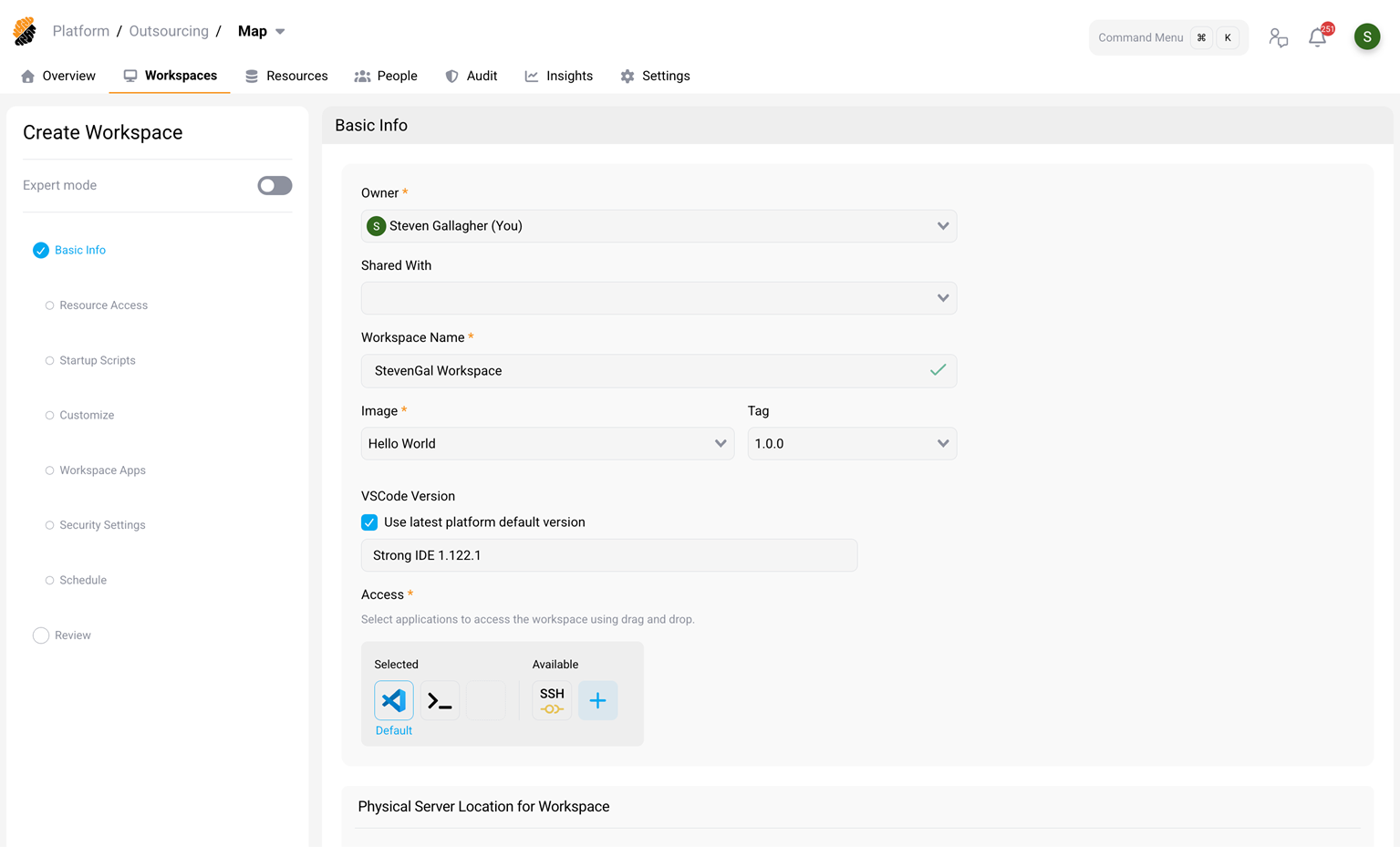
Your workspace starts in under 30 seconds. Docker is provided automatically by the platform (through Docker-in-Docker), so no additional setup is required.
Step 2: Understand how secrets are configured
The Hello World app connects to PostgreSQL using the environment variables you added in Step 1. These are injected into your workspace automatically — no .env file needed.
Open a terminal and verify:
echo $DB_USER    # acme_user
echo $DB_HOST    # localhost
<!--NeedCopy-->
The app reads these through process.env in its database connection code (src/lib/db.ts). DB_PORT is optional — it defaults to 5432 if omitted. As an alternative to the individual DB_* variables, you can supply a single DATABASE_URL connection string; if set, it takes precedence.
Personal vs. project secrets
| Type | Set by | Available in | Use case |
|---|---|---|---|
| Personal secret | You (in your profile) | All your workspaces | Your personal API keys, tokens, service credentials |
| Project secret | Project Owner (in project settings) | All workspaces in the project | Shared database credentials, team API keys, service URLs |
In this exercise, you added the secrets directly to the workspace. In a real project, your Project Owner would typically configure shared secrets at the project level so they’re available to everyone automatically. You’d only add personal secrets (like your own API keys) through Profile > Security > Personal secrets.
Step 3: Start the application
Open the Cloud IDE (VS Code for Web) and open a terminal. Start the PostgreSQL database, then the dev server:
cd /home/developer/demo-nodejs-postgresql-main
docker-compose up -d    # start PostgreSQL (first run initializes the database)
yarn dev
<!--NeedCopy-->
VS Code detects the open port (3000) and shows a notification: “A workspace application is available at the port 3000”. Select Preview to open the app in VS Code’s built-in browser.
You should see the ACME Project interface. Try adding a user and searching — this exercises the full stack (React to API to PostgreSQL).
You’re ready
Your Hello World workspace is running and ready for development work. You’ve experienced:
- Creating a workspace from a container image
- Configuring secrets as environment variables
- Running a fullstack application with a database
What to do next
| Goal | Guide |
|---|---|
| Learn Node.js development workflows in SDS | Quick start for Node.js developers — uses the Hello World app for hands-on examples |
| Set up your real project environment | Set up your account and Create and connect to your workspace |
| Understand SDS concepts and terminology | What is Secure Developer Spaces? |
Get help
- Ask your Project Owner about which template to use for your actual project.
- Browse the SDS docs for detailed guides.