-
-
-
1-Click VM for deploying Citrix Secure Developer Spaces
-
-
How to install and use JetBrains IntelliJ Gateway as a Citrix published application
-
Use Citrix Secure Access and Citrix Secure Developer Spaces with VS Code
-
Configure AI Gateway routing in Citrix Secure Developer Spaces
-
Configure external MongoDB with X.509 authentication in Citrix Secure Developer Spaces
-
This content has been machine translated dynamically.
Dieser Inhalt ist eine maschinelle Übersetzung, die dynamisch erstellt wurde. (Haftungsausschluss)
Cet article a été traduit automatiquement de manière dynamique. (Clause de non responsabilité)
Este artículo lo ha traducido una máquina de forma dinámica. (Aviso legal)
此内容已经过机器动态翻译。 放弃
このコンテンツは動的に機械翻訳されています。免責事項
이 콘텐츠는 동적으로 기계 번역되었습니다. 책임 부인
Este texto foi traduzido automaticamente. (Aviso legal)
Questo contenuto è stato tradotto dinamicamente con traduzione automatica.(Esclusione di responsabilità))
This article has been machine translated.
Dieser Artikel wurde maschinell übersetzt. (Haftungsausschluss)
Ce article a été traduit automatiquement. (Clause de non responsabilité)
Este artículo ha sido traducido automáticamente. (Aviso legal)
この記事は機械翻訳されています.免責事項
이 기사는 기계 번역되었습니다.책임 부인
Este artigo foi traduzido automaticamente.(Aviso legal)
这篇文章已经过机器翻译.放弃
Questo articolo è stato tradotto automaticamente.(Esclusione di responsabilità))
Translation failed!
1-Click VM for deploying Citrix Secure Developer Spaces™
Use this guide to deploy a virtual machine (VM) running the Citrix Secure Developer Spaces™ (SDS) platform using the automated installer. The installer provisions infrastructure with Terraform, installs a lightweight Kubernetes cluster (K3S), and deploys the platform. It also configures DNS and manages TLS certificates.
Note:
The 1-click VM is purpose-built for proof-of-concept (POC) and demo environments. It has been optimized for implementation simplicity and provides the same functional capabilities as a standard deployment. However, it is not designed for scalability and cannot be converted into a production-grade installation. There is no upgrade path from a 1-click VM to a full production deployment.
Prerequisites
- Docker installed on your local machine.
- Cloud provider credentials (AWS, Azure, or GCP).
- Admin email and password for platform access.
Run the installer container
Pull and run the installer from Docker Hub. This command mounts your current directory into the container to share configuration files. The installer uses the current working directory to download and install SDS. It’s recommended that you create and use a dedicated folder for this 1-click deployment before running the installer.
docker run -it --rm -v ${PWD}:/strong-network/shared strongnetwork/strong_installer:2026.4.5
<!--NeedCopy-->
Deploy the platform
Once inside the container shell, start the deployment process:
./strong-cli deploy-demo
<!--NeedCopy-->
Follow the on-screen prompts to configure your deployment.
-
Admin Credentials: Provide an admin email and create a secure password.

-
VM Size: Select a VM size. The size determines the maximum number of concurrently active workspaces.

Information:
You can resize the VM later if needed.
-
Cloud Provider: Choose where to deploy: AWS, Azure, or GCP.
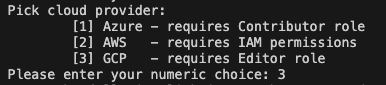
-
Cloud Credentials: Provide your cloud identity. The specific steps will vary by provider.

For example, GCP will list available projects for selection.
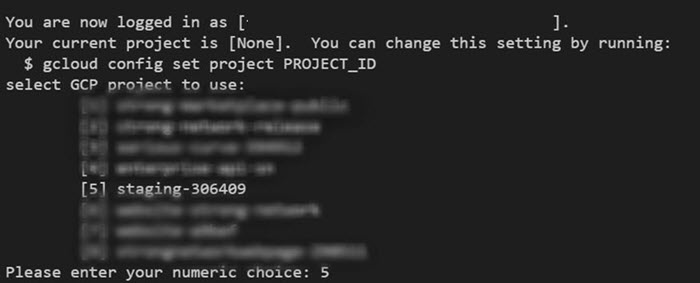
-
Region: Select the deployment region. Choose a predefined region (US, EU, ASIA) or select specific datacenter to enter a custom datacenter location.
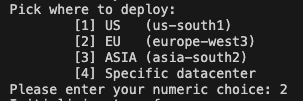
Terraform will now provision and configure your resources.
What to expect
After deployment, you’ll have:
- A VM running the SDS Platform
- A secure URL to access the SDS platform
Warning
- Initialization Time: The login page may appear before all services are initialized. If you see an invalid username or password error, wait up to 5 minutes for the SDS platform to fully initialize before trying again.
- License and certificates: The initial SDS platform license is valid for 6 months.
- TLS certificates: TLS certificates are valid for 3 months.
Share
Share
In this article
This Preview product documentation is Citrix Confidential.
You agree to hold this documentation confidential pursuant to the terms of your Citrix Beta/Tech Preview Agreement.
The development, release and timing of any features or functionality described in the Preview documentation remains at our sole discretion and are subject to change without notice or consultation.
The documentation is for informational purposes only and is not a commitment, promise or legal obligation to deliver any material, code or functionality and should not be relied upon in making Citrix product purchase decisions.
If you do not agree, select I DO NOT AGREE to exit.