Build and manage custom workspace images for Citrix SDS
While standard images provide a quick start, using custom workspace images within Citrix Secure Developer Spaces (SDS) ensures your development environment is tailored to your organization’s needs while maintaining strict compliance.
Benefits of custom images
- Tailored developer experience: Pre-install project-specific runtimes (Node, Python, Go) and CLI utilities (kubectl, terraform). You can pre-configure internal network settings, CA certificates, IDE extensions, and shell aliases so the workspace is ready immediately upon launch.
- Standardized governance: Ensure every container follows internal standards, including approved, hardened OS distributions and software provenance from trusted repositories.
- Proactive security: Integrate images into your vulnerability management lifecycle. Trigger automated builds to rotate images when a CVE is detected and reduce the attack surface by removing unnecessary packages.
Architecture
Runtime architecture
In the SDS platform, a workspace runs inside a Kubernetes Pod. There is a one-to-one relationship between a workspace and a Pod to ensure container-level isolation.
The workspace runtime consists of three primary layers:
- The workspace container: The execution environment containing your compilers, debuggers, and tools.
-
Persistent storage: A persistent volume (PV) mounted in the user home directory (
/home/developer). This ensures that code, local configurations, and shell history persist if the Pod restarts. - Platform sidecars: Auxiliary containers managed by the SDS platform that provide features like startup scripts and Docker-in-Docker support.
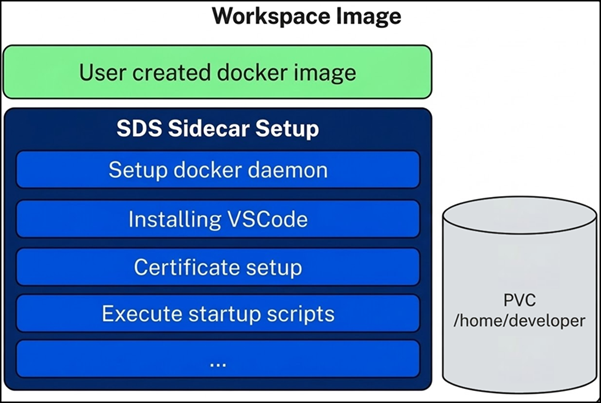
Layered image architecture
We recommend a multi-layered image architecture to balance centralized governance with developer autonomy:
- Base Image: A hardened OS provided by Corporate IT. Includes enterprise CA certificates and core security configurations.
- Organization Image: Owned by the SDS Platform team. Contains core SDS dependencies, common development tools, and global proxy settings.
- Project Image: Owned by application teams. Includes specific runtimes (e.g., JDK 17, Node 20) and project-specific dependencies.
Understanding persistence
In an SDS workspace, only the /home/developer directory is persistent. When a workspace restarts, any changes to the root filesystem (/etc, /usr, /var) are discarded.
Important:
The persistent volume is mounted at runtime. Any files placed in
/home/developerduring thedocker buildphase will be overwritten by the persistent volume once the workspace starts.
Persistence design patterns
- Binaries: Install binaries in system directories like
/usr/local/binduring the Docker build. - Local data and configuration: Configure tools to store logs, cache, and plugins in
/home/developer. - Global configuration: Use
/etc/for global tool settings to serve as a fallback.
Non-standard persistence
Tools that dynamically install binaries to the home directory (e.g., conda, nvs, gcloud CLI) must be treated as Local Data. Use startup scripts to ensure these configurations are restored or initialized after the persistent volume is mounted.
Automated configuration with startup scripts
Platform-managed scripts
Managed via the SDS UI, these scripts are executed every time a workspace starts.
- Pre-startup scripts: Run during the initial container initialization phase.
- Post-startup scripts: Run after the workspace services are active.
- Idempotency: Because these run on every start, ensure scripts check for existing configurations:
if [ ! -f "/home/developer/.my_tool_config" ]; then
    echo "Initializing configuration..."
fi
<!--NeedCopy-->
Image-embedded scripts
Best for strict DevOps practices, these scripts are stored in the Docker image and run only once during the initial workspace creation.
-
Target directory:
/usr/bin/strong_network_startup/ -
Permissions: The
developeruser must have execution permissions. -
Naming: Scripts run in alphabetical order. Use numeric prefixes (e.g.,
01_setup.sh).
Security best practices
Secret handling
Never embed credentials (SSH keys, API tokens) directly in a Docker image. SDS provides secure injection at runtime:
- Environment variables: Best for API keys and usernames.
-
File mounts: Secrets are mounted in the
/secrets/folder. Preferred for license files and cryptographic keys.
Third-party integrations
Always prefer native platform integrations (e.g., JFrog Artifactory, Git providers) over manual secret injection. SDS handles the authentication layer automatically, so you do not need to manually manage .npmrc, .gitconfig, or .docker/config.json files in your image.
System requirements
Custom images must meet the following requirements to ensure full compatibility with the Citrix Secure Developer Spaces (SDS) platform and the VS Code Server that runs inside the workspace.
Core packages (all distributions and architectures)
| Package | Purpose |
|---|---|
glibc >= 2.28 |
C standard library required by the VS Code Server (use musl + gcompat on Alpine) |
libstdc++ >= 3.4.25 |
C++ standard library |
libgcc |
GCC runtime |
bash |
Default shell required by the VS Code Server |
curl or wget
|
Used to download the server and external dependencies |
git |
Source control integration and workspace initialization |
git-lfs |
Required for handling large files and binary assets |
openssh-client / openssh-clients
|
Required for SSH-based Git authentication and remote access |
Distribution-specific requirements
Ubuntu and Debian
Ubuntu 20.04+ or Debian 11+ is recommended for glibc compatibility.
| Package | Purpose |
|---|---|
tar |
Required to unpack the server bundle |
ca-certificates |
Ensures secure HTTPS connections when downloading extensions |
Red Hat Enterprise Linux (RHEL)
Supported: RHEL 8.x and RHEL 9.x.
| Package | Purpose |
|---|---|
tar |
Required to unpack the server bundle |
CentOS Stream and RHEL-compatible distributions
Supported: CentOS Stream 8/9, Rocky Linux 8/9, and AlmaLinux 8/9. CentOS 7 is not supported
because it ships with glibc 2.17.
| Package | Purpose |
|---|---|
tar |
Required to unpack the server bundle |
Alpine Linux 3.16+
Note:
Alpine uses
muslinstead ofglibc. Core features work through compatibility layers, but Ubuntu and RHEL-based images are the recommended distributions for the most stable experience with VS Code Server and Citrix SDS.
| Package | Purpose |
|---|---|
musl >= 1.2.3 |
Native C standard library for Alpine |
gcompat |
Provides the glibc compatibility layer |
Architecture-specific requirements
AMD64 (x86_64)
No additional packages are required beyond the core list.
ARM32 architectures
| Package | Purpose |
|---|---|
libatomic (often packaged as libatomic1 on Debian/Ubuntu) |
Required for atomic memory operations used by the Node.js runtime in VS Code |
User account requirements
The container image must be provisioned with the following user account and home directory:
-
Username:
developer -
Home directory:
/home/developer -
UID:
1000 -
GID:
1000
Build your first base image
Design philosophy
-
Completeness over minimality: Unlike production images, workspace images should prioritize developer experience by including all necessary compilers, headers, and
-devlibraries. - Skip multi-stage builds: Keep tools installed during the build process available for the developer.
-
Orchestration overrides: SDS overrides
ENTRYPOINTandCMDto launch platform services. Use startup scripts for initialization logic.
Ubuntu 24.04 example
FROM ubuntu:24.04

# 1. Install SDS core requirements

RUN apt-get update && apt-get install -y --no-install-recommends \
    curl bash tar git git-lfs openssh-client sudo \
    && apt-get clean && rm -rf /var/lib/apt/lists/*

# 2. Create developer user (Repurposing default 'ubuntu' user for 24.04)

RUN usermod -l developer -d /home/developer -m ubuntu && \
    groupmod -n developer ubuntu

# 3. Setup startup directory

RUN mkdir -p /usr/bin/strong_network_startup/vscode_extensions && \
    chown -R developer:developer /usr/bin/strong_network_startup && \
    chmod u+rwx /usr/bin/strong_network_startup
<!--NeedCopy-->
Enabling root access
To grant the developer user sudo privileges, add the following to your Dockerfile:
RUN apt-get update && apt-get install -y sudo && rm -rf /var/lib/apt/lists/*

# Grant passwordless sudo

RUN echo "developer ALL=(ALL) NOPASSWD:ALL" >> /etc/sudoers.d/developer && \
    chmod 0440 /etc/sudoers.d/developer
<!--NeedCopy-->
Note:
For increased security, you can allowlist specific tools instead of granting full access:
developer ALL=(ALL) NOPASSWD: /usr/bin/apt-get, /usr/bin/systemctl