-
-
How to install and use JetBrains IntelliJ Gateway as a Citrix published application
-
Use Citrix Secure Access and Citrix Secure Developer Spaces with VS Code
-
Configure AI Gateway routing in Citrix Secure Developer Spaces
-
Configure external MongoDB with X.509 authentication in Citrix Secure Developer Spaces
-
This content has been machine translated dynamically.
Dieser Inhalt ist eine maschinelle Übersetzung, die dynamisch erstellt wurde. (Haftungsausschluss)
Cet article a été traduit automatiquement de manière dynamique. (Clause de non responsabilité)
Este artículo lo ha traducido una máquina de forma dinámica. (Aviso legal)
此内容已经过机器动态翻译。 放弃
このコンテンツは動的に機械翻訳されています。免責事項
이 콘텐츠는 동적으로 기계 번역되었습니다. 책임 부인
Este texto foi traduzido automaticamente. (Aviso legal)
Questo contenuto è stato tradotto dinamicamente con traduzione automatica.(Esclusione di responsabilità))
This article has been machine translated.
Dieser Artikel wurde maschinell übersetzt. (Haftungsausschluss)
Ce article a été traduit automatiquement. (Clause de non responsabilité)
Este artículo ha sido traducido automáticamente. (Aviso legal)
この記事は機械翻訳されています.免責事項
이 기사는 기계 번역되었습니다.책임 부인
Este artigo foi traduzido automaticamente.(Aviso legal)
这篇文章已经过机器翻译.放弃
Questo articolo è stato tradotto automaticamente.(Esclusione di responsabilità))
Translation failed!
Onboarding email notifications
Citrix Secure Developer Spaces™ (SDS) sends automatic email notifications that help new users find their way onto the platform and into their projects. These emails give recipients a direct sign-in link, so they can get started without waiting for manual instructions.
This page explains which emails SDS sends, when each one is triggered, and what recipients see. It’s written for platform administrators and project owners who onboard users.
Note:
Email notifications are only delivered when an email gateway is configured. See Prerequisite: configure an email gateway.
How onboarding emails work
SDS generates an onboarding email whenever an event adds a user to the platform or to a project. The platform builds the message from a template, personalizes it with details such as the inviter’s name and a sign-in link, and sends it through the configured email gateway.
Recipients don’t need an existing account to receive these emails. Each email includes a button that takes the user straight to the sign-in page or the relevant project.
Prerequisite: configure an email gateway
Onboarding emails are sent through the email gateway defined in System Configuration. Until a gateway is set up, SDS generates no onboarding emails.
To set up the gateway:
- Sign in as a platform administrator and select System Configuration.
- Select Others > Email Gateway Configuration.
- Choose a provider: Amazon SES, SendGrid, or SMTP.
- Enter the required details for your provider, including the Sender Email address recipients see in the From field.
- Select Save.
For the full list of provider fields, see Others.
Note:
The Sender Email address appears as the sender of every onboarding email. Use an address that recipients recognize and trust, and that your provider is authorized to send from.
Email types
SDS sends three onboarding emails.
| Trigger | Primary action | |
|---|---|---|
| Invitation to join the platform | A user is invited to the platform. | Sign In — opens the platform sign-in page. |
| You’ve joined a new project | A user is added to a project. | Access Project — opens the project. |
| Test email | An administrator sends a test from the email gateway settings. | None. Confirms that the gateway works. |
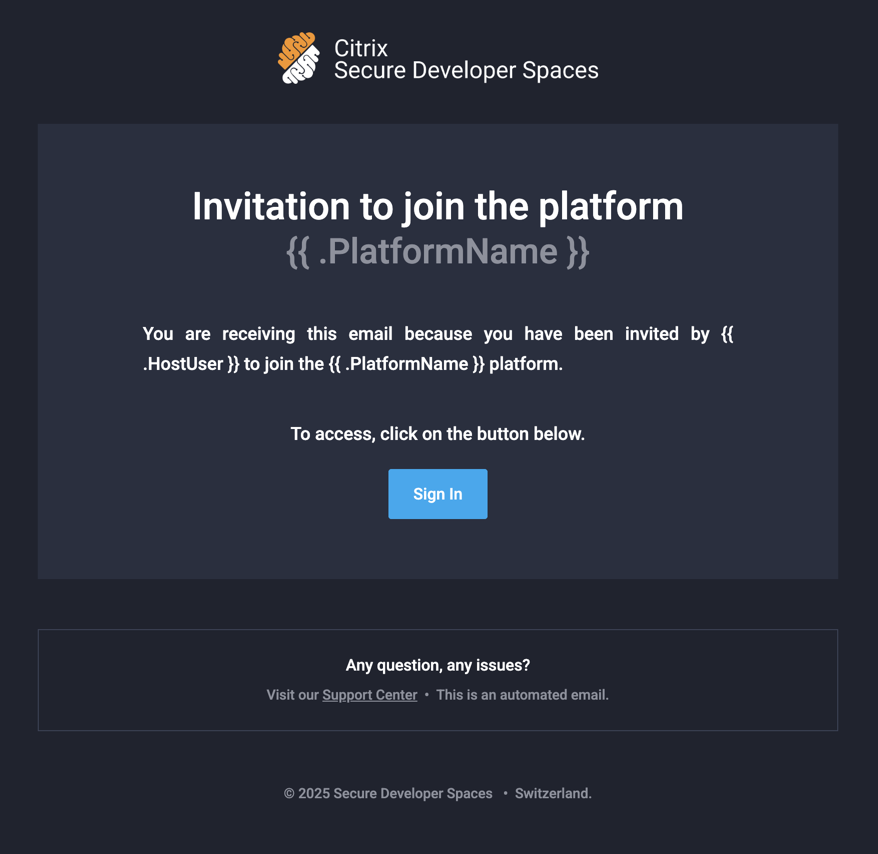
Invitation to join the platform
Sent when a user is invited to the platform for the first time. The email names the inviter and includes a Sign In button that opens the sign-in page with the recipient’s email address pre-filled.
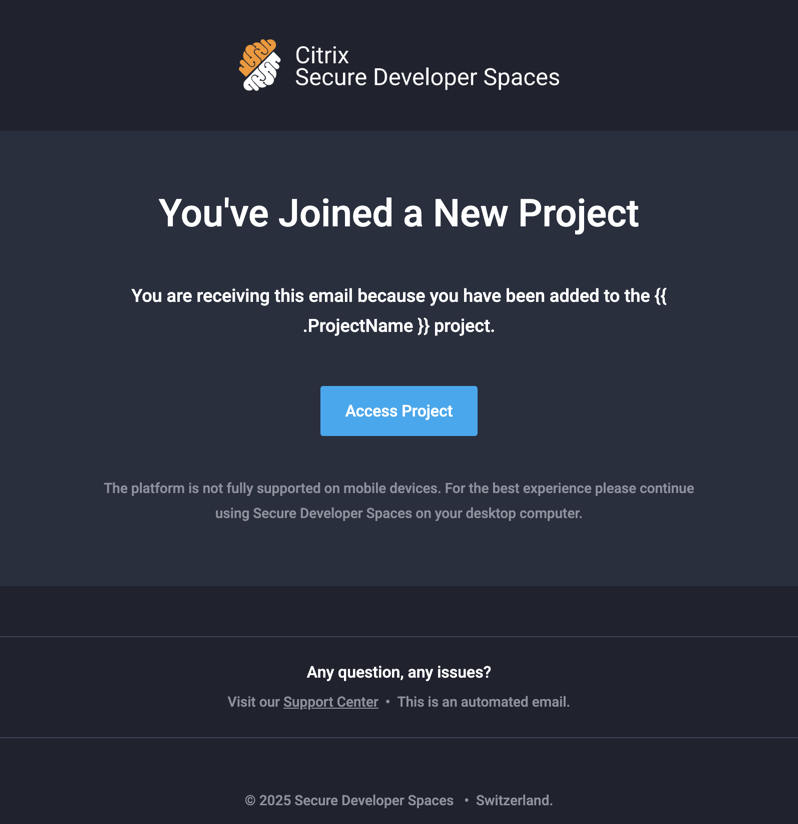
You’ve joined a new project
Sent when a user is added to a project. The email names the project and includes an Access Project button that opens it.
Test email
Sent when an administrator uses the test option in Email Gateway Configuration. Use it to confirm that the gateway is set up correctly before you invite users. The test email doesn’t include an action button.
Troubleshoot onboarding emails
If a user reports that they didn’t receive an onboarding email:
| Check | What to do |
|---|---|
| Email gateway | Confirm that a gateway is configured under System Configuration > Others > Email Gateway Configuration. Without it, SDS sends no emails. |
| Gateway health | Send a test email from the gateway settings to confirm that the provider works. |
| Sender address | Verify that the Sender Email address is valid and authorized to send through your provider. |
| Spam or quarantine | Ask the recipient to check their spam or quarantine folder. Automated emails are sometimes filtered. |
| Email address | Confirm that the address used to invite the user is correct. |
If the test email arrives but onboarding emails don’t, re-check the event that should have triggered the email — for example, that the user was actually added to the platform or project.
Related information
Share
Share
This Preview product documentation is Citrix Confidential.
You agree to hold this documentation confidential pursuant to the terms of your Citrix Beta/Tech Preview Agreement.
The development, release and timing of any features or functionality described in the Preview documentation remains at our sole discretion and are subject to change without notice or consultation.
The documentation is for informational purposes only and is not a commitment, promise or legal obligation to deliver any material, code or functionality and should not be relied upon in making Citrix product purchase decisions.
If you do not agree, select I DO NOT AGREE to exit.