-
-
-
Configure Windows Defender Access Control related to VDA Installation
-
Generate custom script to install or upgrade VDA via command-line
-
-
Cloud Connector Standalone Citrix Secure Ticketing Authority (STA) service
-
-
-
-
-
This content has been machine translated dynamically.
Dieser Inhalt ist eine maschinelle Übersetzung, die dynamisch erstellt wurde. (Haftungsausschluss)
Cet article a été traduit automatiquement de manière dynamique. (Clause de non responsabilité)
Este artículo lo ha traducido una máquina de forma dinámica. (Aviso legal)
此内容已经过机器动态翻译。 放弃
このコンテンツは動的に機械翻訳されています。免責事項
이 콘텐츠는 동적으로 기계 번역되었습니다. 책임 부인
Este texto foi traduzido automaticamente. (Aviso legal)
Questo contenuto è stato tradotto dinamicamente con traduzione automatica.(Esclusione di responsabilità))
This article has been machine translated.
Dieser Artikel wurde maschinell übersetzt. (Haftungsausschluss)
Ce article a été traduit automatiquement. (Clause de non responsabilité)
Este artículo ha sido traducido automáticamente. (Aviso legal)
この記事は機械翻訳されています.免責事項
이 기사는 기계 번역되었습니다.책임 부인
Este artigo foi traduzido automaticamente.(Aviso legal)
这篇文章已经过机器翻译.放弃
Questo articolo è stato tradotto automaticamente.(Esclusione di responsabilità))
Translation failed!
Generate custom script to install or upgrade VDA via command-line
The Generate custom script button allows you to create a batch or script based on the configuration selections made in the VDA installation UI. The generated script can be exported and used to perform unattended installations or upgrades from the command line. This feature helps automate deployments, ensures configuration accuracy, and reduces manual scripting errors.
Use the following steps to generate the command-line script from the VDA installation UI.
Step 1: Generate a custom script from the installer UI
Note:
This feature is supported only in UI mode.
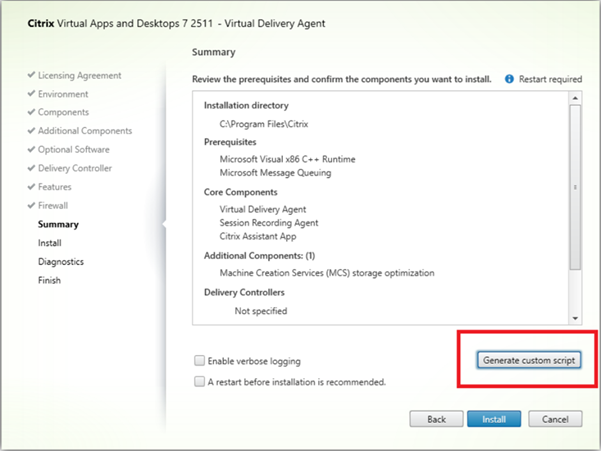
Configure the VDA installation options in the UI as usual. On the Summary page, select Generate custom script to create a command-line script based on your configuration, as shown in the following screenshot.
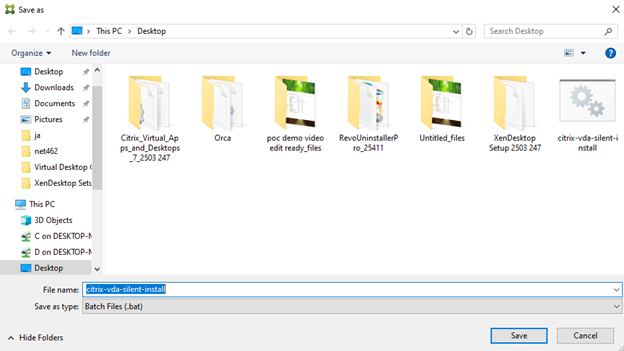
A dialog box appears prompting you to choose a location to save the generated script. You can also select a different directory and rename the script before saving it.
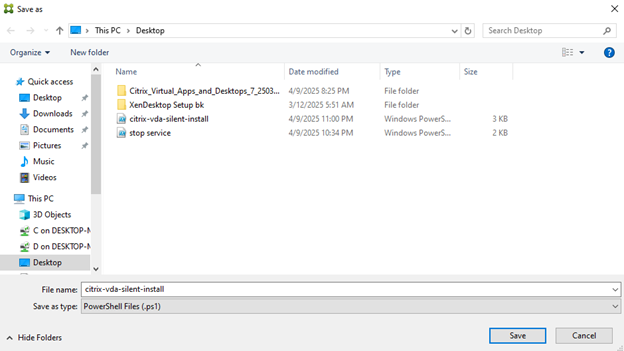
By default, the script is saved as a batch (.bat)file. You can also choose to save it as a PowerShell (.ps1) script.
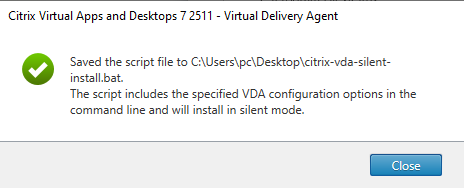
After the script is generated and saved, a confirmation dialog appears showing the file location and describing the purpose of the script. You can edit the generated script using any text editor, such as Notepad. Before running the script, exit the installer UI. Only one VDA installation or upgrade process can run at a time.
Step 2. Install or upgrade VDA using the generated script
The following screenshot shows how to use the generated batch file to install or upgrade the VDA. The only required parameter is the path to the VDA installer. If the installer path is valid, the script runs the installation or upgrade and exits with the same exit code as the VDA installer. A readable result message is displayed to indicate the outcome of the process.

The following screenshot shows how to use the generated PowerShell script to install or upgrade the VDA. The only required parameter is the path to the VDA installer. If the installer path is valid, the script runs the installation or upgrade and exits with the same exit code as the VDA installer. A readable status message appears, indicating the result of the process.

Note:
If the Delivery Controller is configured with an enrollment token, run the script as shown in the following screenshot.

The script requires the following parameters: <Path-to-generated-script>, <Path-to-vda-installer>, <Websocket-token-value>.
Share
Share
This Preview product documentation is Citrix Confidential.
You agree to hold this documentation confidential pursuant to the terms of your Citrix Beta/Tech Preview Agreement.
The development, release and timing of any features or functionality described in the Preview documentation remains at our sole discretion and are subject to change without notice or consultation.
The documentation is for informational purposes only and is not a commitment, promise or legal obligation to deliver any material, code or functionality and should not be relied upon in making Citrix product purchase decisions.
If you do not agree, select I DO NOT AGREE to exit.