-
-
Cloud Connector Standalone Citrix Secure Ticketing Authority (STA) service
-
-
-
-
-
-
Viewing and Using AOT logs
-
-
This content has been machine translated dynamically.
Dieser Inhalt ist eine maschinelle Übersetzung, die dynamisch erstellt wurde. (Haftungsausschluss)
Cet article a été traduit automatiquement de manière dynamique. (Clause de non responsabilité)
Este artículo lo ha traducido una máquina de forma dinámica. (Aviso legal)
此内容已经过机器动态翻译。 放弃
このコンテンツは動的に機械翻訳されています。免責事項
이 콘텐츠는 동적으로 기계 번역되었습니다. 책임 부인
Este texto foi traduzido automaticamente. (Aviso legal)
Questo contenuto è stato tradotto dinamicamente con traduzione automatica.(Esclusione di responsabilità))
This article has been machine translated.
Dieser Artikel wurde maschinell übersetzt. (Haftungsausschluss)
Ce article a été traduit automatiquement. (Clause de non responsabilité)
Este artículo ha sido traducido automáticamente. (Aviso legal)
この記事は機械翻訳されています.免責事項
이 기사는 기계 번역되었습니다.책임 부인
Este artigo foi traduzido automaticamente.(Aviso legal)
这篇文章已经过机器翻译.放弃
Questo articolo è stato tradotto automaticamente.(Esclusione di responsabilità))
Translation failed!
Viewing and Using AOT Logs
Accessing Logs via Director UI
Step1
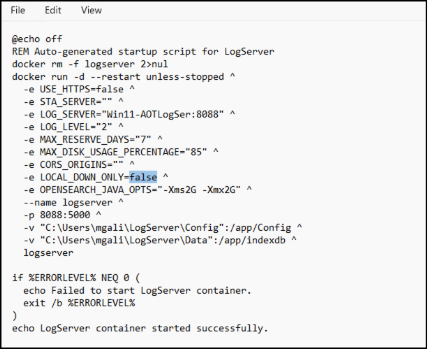
Edit the StartLogServer.bat file
The StartLogServer.bat file contains all configuration parameters used to start the AOT Log Server container, including several environment variables that control log access and behavior. One of the key settings is LOCAL_DOWN_ONLY.
-
When LOCAL_DOWN_ONLY=false, the Log Server accepts remote log-viewing requests. This allows Citrix Director/Monitor to connect to the Log Server and display AOT logs directly in the Monitor UI.
-
When LOCAL_DOWN_ONLY=true, the Log Server restricts log access to local-only connections. In this mode, you must connect directly to the Log Server machine to view logs, and Citrix Director Monitor will not be able to retrieve or display logs.
Step 2
Web Studio provides a dedicated setting that allows Citrix Director to connect to the AOT Log Server and display logs in the Monitor console. Once the Web Studio settings are saved, the Delivery Controllers update the site configuration, and Director receives the log server details, including the log server address, port, and authentication key. The director uses these settings to establish a secure connection to the Log Server.
Step 3
After configuration:
- Open Citrix Director.
- A new Logs option appears in the left navigation panel.
- Select Logs and you will see the Get Started page, click on Close to skip it, as we have completed these settings earlier.
- Now, you will see the Director retrieving and displaying AOT logs directly from the Log Server.
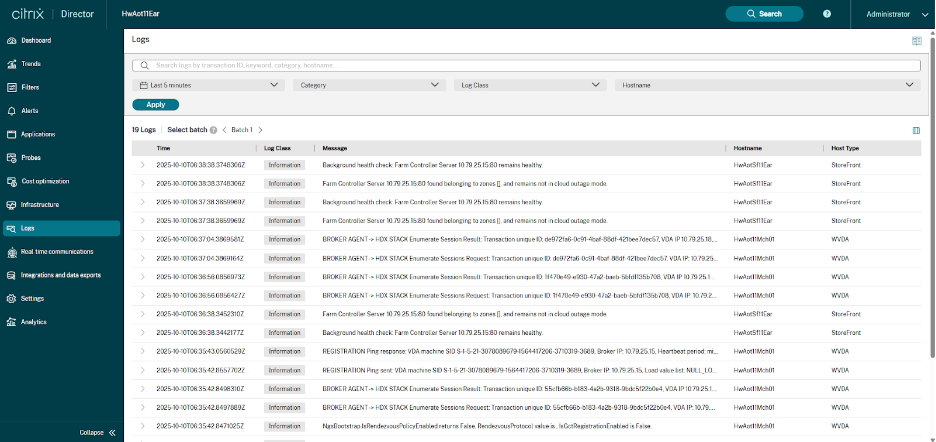
The Logs page in Director provides a unified view of AOT events from Delivery Controllers, VDAs, StoreFront servers, and other Citrix components. You can search, filter, and inspect logs in real time to troubleshoot issues quickly.
Free-text search: At the top of the Logs page, you’ll find a free-text search bar. You can type any keyword to begin narrowing down the results. The search updates the results instantly once you apply filters. Examples include:
- Usernames
- Machine names
- Event keywords (for example, registration, authentication, STA)
- Transaction IDs
- Error messages or partial strings
Time filter: Use the time selector (for example, Last 5 minutes, Last 1 hour, Last 24 hours) to view logs generated within a specific duration. This helps you quickly isolate events around the exact time an issue occurred.
Category filter: The Category field lets you filter logs based on the type of event or subsystem. This helps you focus on logs related to Application launch, Registration, VDA configuration, Graphics, HDX Direct, ICA connection, etc.
Log Class filter: The Log Class filter groups logs by severity or event type. This lets you focus only on errors or important events when troubleshooting. Common classes include:
- Information
- Warning
- Error
- Failure
Hostname filter: The Hostname filter lets you select a specific machine — such as a VDA, Delivery Controller, CWA, or StoreFront server. This is useful when you want to drill into logs for a single endpoint or VM instead of searching across the entire deployment.
This centralized access streamlines troubleshooting by allowing for quick log retrieval and analysis from a single console. Learn more about the prerequisites and getting started in Director - Logs.
Accessing Logs via Log Server
The following content is Generate the AuthKey. To enable the access to logs, user needs
-
Modify the
StartLogServer.batscript LOCAL_DOWN_ONLY=false -
Generate the AuthKey
To keep your logs secure, you’ll need an AuthKey before downloading them. Here’s what to do:
- Get your AuthKey – Use your own role-name/name to generate it.
- Run locally – Scripts can only run on the machine where the Docker container is installed.
-
Windows users – Use the
GetAuthKey.batscripts instead of shell scripts. - Download logs – Once authenticated, you can safely retrieve your logs.
Generating and Managing authentication keys for AOT Log Server
You can use the provided .sh (Linux) or .bat (Windows) scripts to quickly generate a new authentication key for a specific role or user. These scripts simplify the process by returning the generated key along with the associated role.
For Linux
./GetAuthKey.sh role-name
<!--NeedCopy-->
For Windows
GetAuthKey.bat role-name
<!--NeedCopy-->
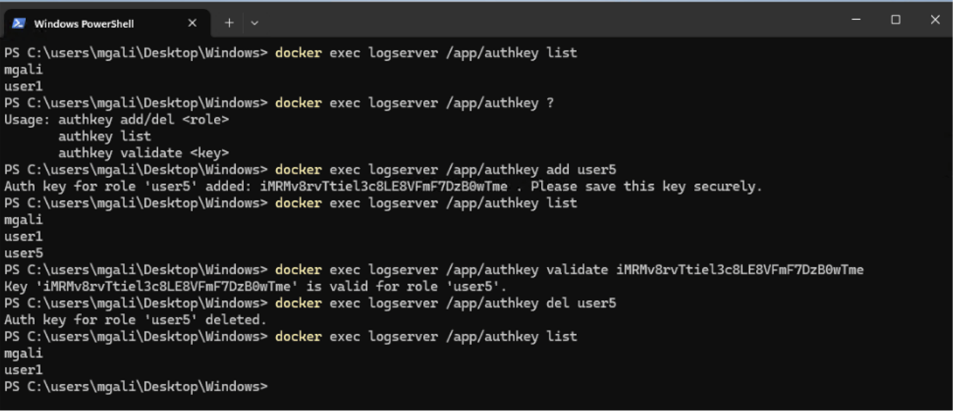
The AOT Log Server provides commands to manage authentication keys associated with different roles or users. These commands allow administrators to add, list, validate, and delete auth keys directly from the container. Use the available docker exec commands directly on the Log Server container.
- Add a new auth key: Creates a new auth key for a specified role or user:
docker exec logserver /app/authkey add <RoleName>
- List all auth keys: Displays all existing roles/users for which auth keys are created:
docker exec logserver /app/authkey list
- Validate an auth key: Verifies whether a given auth key is valid and identifies the associated role:
docker exec logserver /app/authkey validate <key>
- Delete an auth key: Removes an auth key associated with a specific role:
docker exec logserver /app/authkey del <RoleName>
- View command usage: Displays available options for auth key management:
docker exec logserver /app/authkey ??
The following example demonstrates how to manage auth keys:
List machine names that have already sent their AOT logs to the logserver
The parameter is the key get from GetAuthKey.sh
For Linux
./ListMachines.sh ebac9b7726cb4be597c92c6769134d25
{"machines":["MachineName"]}
<!--NeedCopy-->
Empty machines means that there has no log
For Windows
ListMachines.bat ebac9b7726cb4be597c92c6769134d25
{"machines":["MachineName"]}
<!--NeedCopy-->
For windows powershell when LogServer starts with “-e LOCAL_DOWN_ONLY=false”:
Invoke-WebRequest -Uri "https://logserver_fqdn:8443/ctxlogserver/Download/ListMachine" -Headers @{ AuthKey = "ebac9b7726cb4be597c92c6769134d25" }
<!--NeedCopy-->
Replace logserver_fqdn with logserver real FQDN, and 8443 with logserver real port. Replace https with http when installed in http mode.
Empty machines means that there has no log
Download logs by Machine name and Time range.
Time is in UTC format:YYYY-mm-ddTHH:MM:SSZ.
#Usage: ./DownloadLogsByTime.sh [AuthKey] [MachineName] [StartTime|YYYY-mm-ddTHH:MM:SSZ] [EndTime|YYYY-mm-ddTHH:MM:SSZ] [OutputFile]
#Example:
<!--NeedCopy-->
For Linux
./DownloadLogsByTime.sh ebac9b7726cb4be597c92c6769134d25 MachineName 2025-01-01T00:00:00Z 2025-01-02T00:00:00Z logs.csv
<!--NeedCopy-->
For Windows
DownloadLogsByTime.bat ebac9b7726cb4be597c92c6769134d25 MachineName 2025-01-01T00:00:00Z 2025-01-02T00:00:00Z logs.csv
<!--NeedCopy-->
For windows powershell when LogServer starts with “-e LOCAL_DOWN_ONLY=false”:
Invoke-WebRequest -Uri "https://logserver_fqdn:8443/ctxlogserver/Download/TimeRange?start=2025-01-01T00:00:00Z&end=2025-01-02T00:00:00Z" -Headers @{ AuthKey = "ebac9b7726cb4be597c92c6769134d25" } -OutFile logs.csv
<!--NeedCopy-->
Download logs by keyword/s filter. Time is in UTC format
Note:
- A keyword can be a single word or a combination of words.
- Keywords can match anywhere within the log message.
- A Transaction ID can also be used as a keyword.
#Usage: ./DownloadLogsByWords.sh [AuthKey] [StartTime|YYYY-mm-ddTHH:MM:SSZ] [EndTime|YYYY-mm-ddTHH:MM:SSZ] [SearchWords] [OutputFile]
#Example:
<!--NeedCopy-->
For Linux
./DownloadLogsByWords.sh authkey 2025-01-01T00:00:00.000Z 2025-12-31T23:59:59.999Z "session launch" logs.csv
<!--NeedCopy-->
For Windows
DownloadLogsByWords.bat authkey 2025-01-01T00:00:00.000Z 2025-12-31T23:59:59.999Z "failed vda" logs.csv
<!--NeedCopy-->
For windows powershell when LogServer starts with “-e LOCAL_DOWN_ONLY=false”:
Invoke-WebRequest -Uri "https://logserver_fqdn:8443/ctxlogserver/Download/SearchLog?start=2025-01-01T00:00:00Z&end=2025-01-02T00:00:00Z&words=failed vda" -Headers @{ AuthKey = "ebac9b7726cb4be597c92c6769134d25" } -OutFile logs.csv
<!--NeedCopy-->
Words are separated by space
Share
Share
In this article
This Preview product documentation is Citrix Confidential.
You agree to hold this documentation confidential pursuant to the terms of your Citrix Beta/Tech Preview Agreement.
The development, release and timing of any features or functionality described in the Preview documentation remains at our sole discretion and are subject to change without notice or consultation.
The documentation is for informational purposes only and is not a commitment, promise or legal obligation to deliver any material, code or functionality and should not be relied upon in making Citrix product purchase decisions.
If you do not agree, select I DO NOT AGREE to exit.