-
-
Cloud Connector Standalone Citrix Secure Ticketing Authority (STA) service
-
-
-
Optimization for Microsoft Teams (New)
-
New VDI solution for Teams
-
-
-
This content has been machine translated dynamically.
Dieser Inhalt ist eine maschinelle Übersetzung, die dynamisch erstellt wurde. (Haftungsausschluss)
Cet article a été traduit automatiquement de manière dynamique. (Clause de non responsabilité)
Este artículo lo ha traducido una máquina de forma dinámica. (Aviso legal)
此内容已经过机器动态翻译。 放弃
このコンテンツは動的に機械翻訳されています。免責事項
이 콘텐츠는 동적으로 기계 번역되었습니다. 책임 부인
Este texto foi traduzido automaticamente. (Aviso legal)
Questo contenuto è stato tradotto dinamicamente con traduzione automatica.(Esclusione di responsabilità))
This article has been machine translated.
Dieser Artikel wurde maschinell übersetzt. (Haftungsausschluss)
Ce article a été traduit automatiquement. (Clause de non responsabilité)
Este artículo ha sido traducido automáticamente. (Aviso legal)
この記事は機械翻訳されています.免責事項
이 기사는 기계 번역되었습니다.책임 부인
Este artigo foi traduzido automaticamente.(Aviso legal)
这篇文章已经过机器翻译.放弃
Questo articolo è stato tradotto automaticamente.(Esclusione di responsabilità))
Translation failed!
New VDI solution for Teams
Note:
The New VDI solution for Teams is currently generally available for Windows and Mac endpoints on Citrix®. This solution requires a minimum Microsoft Teams version. See System requirements.
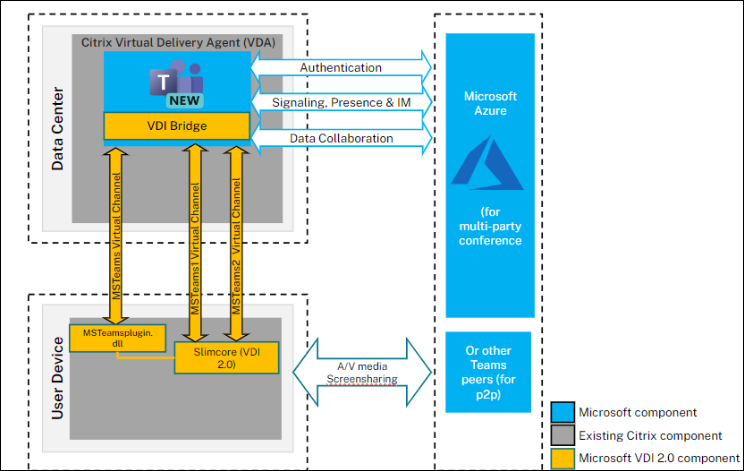
In the New VDI solution for Teams, Microsoft uses the Citrix Virtual Channel SDK to build custom virtual channels. On the endpoint, media is offloaded to the Microsoft media engine (SlimCore) instead of HdxRtcEngine. The custom virtual channels carry the communication between Teams on the VDA and the media engine on the endpoint.
Note:
Microsoft has announced the deprecation of WebRTC-based Citrix HDX™ Optimization for Microsoft Teams on Windows endpoints. Two milestones apply:
October 1, 2026 - End of Support: No longer officially supported by Microsoft or Citrix.
April 1, 2027 - End of Availability: WebRTC-based optimization stops functioning. Citrix Studio policies for the legacy optimization no longer take effect.
Customers are recommended to migrate to the New VDI solution for Teams. This change affects Windows endpoints only. macOS, Linux, ChromeOS, and HTML5 endpoints are not impacted. For more details, see Microsoft Blog.
This solution is owned and managed by Microsoft. Citrix supports the Citrix components involved: Citrix Workspace™ app, the virtual channel allow list, and the plug-in deployment mechanisms described on this page. For the Microsoft-owned architecture and full details, see New VDI solution for Teams in the Microsoft documentation.
System requirements
This section lists the minimum and recommended versions needed to support the New VDI solution for Teams. On minimum versions, some critical bug fixes or latest features might not be available. Deploy the recommended versions for the best experience.
Virtual Delivery Agent (VDA)
Note:
If you are on 2203 LTSR CU2 or below, or 2303 CR or below, see CTX682593 to understand the limitations in those versions and plan your upgrade.
| Minimum versions | Recommended versions |
|---|---|
| 2203 LTSR CU3; 2305 CR | 2203 LTSR CU5+; 2402 LTSR and any later CR |
Citrix Workspace app for Windows
| Minimum versions | Recommended versions |
|---|---|
| 2203 LTSR (latest CU); 2302 CR | 2402 LTSR; 2405 CR or later |
Citrix Workspace app for Mac
| Minimum versions | Recommended versions |
|---|---|
| 2508.10 | 2607 or later |
Mac endpoints require macOS 14, 15, or 26. macOS 26 requires Citrix Workspace app 2511 or later. On Citrix Workspace app for Mac 2508.10, the plug-in must be installed manually. The option to install the plug-in through Citrix Workspace app, Client App Management, or the Virtual channel plug-in manager is available from Citrix Workspace app for Mac 2603.
For the minimum Microsoft Teams version, endpoint OS requirements, and hardware requirements, see the Microsoft documentation.
Components
- New Teams
vdiBridge: the server-side virtual channel module, bundled with Teams. - Custom virtual channel (VC): the custom VC owned by Microsoft Teams.
- Plug-in: the client-side VC dll. Responsible for the media engine download and clean-up.
- Media engine (SlimCore): the operating-system-specific media engine, delivered by Microsoft as an MSIX package.
Deployment
-
Ensure you have the Microsoft Teams version listed in Prerequisites.
-
Configure the Virtual channel allow list policy to allow the Microsoft Teams virtual channels. These channels let the Teams client connect to the client-side plug-in. For more information, see Virtual channel security.
The solution needs three custom virtual channels. Use wildcards to allow the
ms-teams.exeexecutable and the custom virtual channels:MSTEAMS,C:\Program Files\WindowsApps\MSTeams*8wekyb3d8bbwe\ms-teams.exe MSTEAM1,C:\Program Files\WindowsApps\MSTeams*8wekyb3d8bbwe\ms-teams.exe MSTEAM2,C:\Program Files\WindowsApps\MSTeams*8wekyb3d8bbwe\ms-teams.exe <!--NeedCopy-->Note:
- VDA 2603 and later allow these three virtual channels by default. No Studio policy configuration is required on those versions.
- Wildcards for the Virtual channel allow list policy are available in CVAD 2203 LTSR CU2 and later, or Citrix Virtual Apps and Desktops™ 2206 CR and later.
- The VDA machines must be rebooted for the policy to take effect.
- The MSTeams install path changes because it is an MSIX application, so wildcards are required. Allow the exact lines shown above.
-
This solution is controlled by a policy on the Microsoft Teams side, not by a Citrix policy. It is enabled by default. To enable or disable it for specific user groups, see the Microsoft documentation.
-
Deploy the Teams plug-in on your endpoints. See Options to install the Teams plug-in.
-
For media engine staging and registration, and the group policies that can block MSIX installation, see the Microsoft documentation.
Options to install the Teams plug-in
Regardless of the install method, the plug-in is placed in the Citrix Workspace app location on the endpoint:
- Windows (
MsTeamsPluginCitrix.dll): 64-bitC:\Program Files (x86)\Citrix\ICA Client; 32-bitC:\Program Files\Citrix\ICA Client - Mac:
/Applications/Utilities/MsTeamsVdi.Plugin.app
Note:
- On Windows, install Citrix Workspace app in admin mode so virtual channels open correctly. Per-user installation of Citrix Workspace app is not supported.
- The Microsoft Teams VDI plug-in is not supported when Citrix Workspace app is installed from the Microsoft Store.
- Plug-in installation stops if no Citrix Workspace app is found on the endpoint.
- On Windows, the plug-in and Citrix Workspace app must be the same architecture. A 32-bit Citrix Workspace app cannot load a 64-bit plug-in.
- Plug-ins can be upgraded or repaired, but not downgraded, and only while there is no active session.
Option 1: Through Citrix Workspace app installation
-
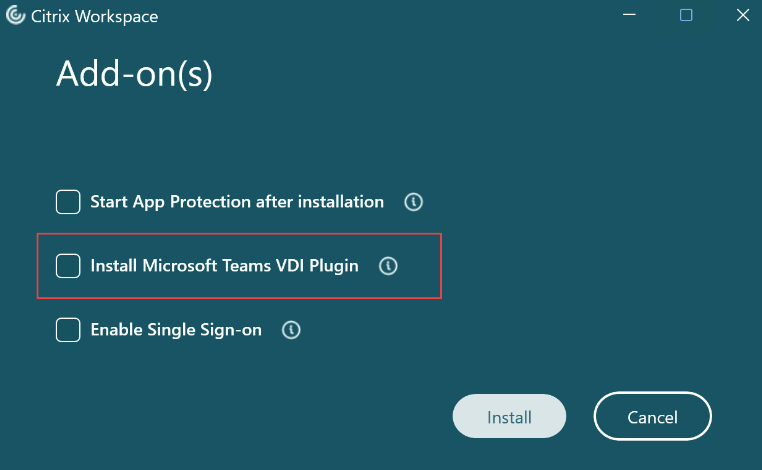
Windows: During a fresh install or manual upgrade, select Install Microsoft Teams VDI Plugin on the Add-on(s) page. From Citrix Workspace app for Windows 2508, this option is selected by default. Clear it to skip installation. Upgrades remember your previous selection.
You can also install from the command line with the
/InstallMSTeamsPluginswitch. For example,CitrixWorkspaceApp.exe /InstallMSTeamsPlugin=Yinstalls the plug-in, and/InstallMSTeamsPlugin=Nprevents it.For a fresh install, the minimum is Citrix Workspace app for Windows 2402 LTSR. For in-place upgrades, the minimum is Citrix Workspace app for Windows 2405 CR. For the latest details, see Install third-party plug-ins.
-
Mac: The option to install the plug-in during Citrix Workspace app installation is available from Citrix Workspace app for Mac 2603 and requires user action. Citrix Workspace app for Mac 2607 installs the plug-in automatically by default. On Citrix Workspace app for Mac 2508.10, install the plug-in manually. See Option 2: Download the plug-in directly.
Option 2: Download the plug-in directly
-
Windows: Download the MSI and deploy it with tools like SCCM or Intune on top of any supported Citrix Workspace app version:
- 32-bit Citrix Workspace app: aka.ms/plugin
- 64-bit Citrix Workspace app: aka.ms/plugin_x64
- Arm-based Citrix Workspace app: aka.ms/plugin_arm64
- Mac: Download the plug-in from aka.ms/macplugin and deploy it with tools like JAMF.
Option 3: Client App Management (formerly Global App Configuration service)
Client App Management (formerly Global App Configuration service, or GACS) manages app settings for managed and unmanaged endpoints, and can deploy the Teams plug-in across your endpoints. On Mac, this requires Citrix Workspace app for Mac 2603 or later. See Microsoft Teams VDI plug-in management.
Option 4: Virtual channel plug-in manager
The Virtual channel plug-in manager deploys plug-ins across client endpoints for applications that need endpoint components, including the New VDI solution for Teams. It detects the application running on the VDA and prompts the user to install the plug-in on the endpoint. Administrators can use it in BYOD scenarios. On Mac, this requires Citrix Workspace app for Mac 2603 or later. See Virtual channel plugin manager.
Plug-in update scenarios
Citrix handles Teams plug-in updates seamlessly when the plug-in is installed through Options 1, 3, or 4. If the plug-in is installed manually (Option 2), Citrix does not handle updates.
- Ensure Citrix Workspace app auto-update is on for plug-in auto-updates.
- Ensure a minimum of Citrix Workspace app for Windows 2405. Citrix Workspace app for Windows 2508 or later installs the plug-in automatically when Citrix Workspace app auto-updates.
- Citrix does not handle plug-in uninstallation. Uninstall the plug-in separately when needed.
Note:
Citrix handles updates to the Teams plug-in, not to the media engine. Microsoft delivers and updates the media engine.
Teams as a Citrix published app
Teams published as a Citrix Virtual Apps application can be optimized with this solution when all the necessary components meet the minimum versions. For the required versions and known limitations, see the Microsoft documentation.
Interoperability and roaming
See Optimization for Microsoft Teams for how the New VDI solution for Teams and Citrix HDX Optimization interoperate and how roaming behaves.
Networking considerations
See Networking considerations in the Microsoft documentation.
Feature support
The feature set and implementation are owned by Microsoft. See the feature list in the Microsoft documentation.
Troubleshooting
The Microsoft Teams client reports the optimization status and, when optimization fails, an error code. These status indicators and error codes are defined by Microsoft. For the full list and end-to-end troubleshooting, see Troubleshooting the New VDI solution for Teams in the Microsoft documentation.
Citrix Monitor provides visibility into the optimization state of this solution. In a session’s details, the Session Topology view shows whether the application is optimized and flags any missing components, such as the plug-in manager, the plug-in and its version, the state of the virtual channel, and the virtual channel allow list status. For more information, see Real-time communications optimization visibility.
Some Microsoft error codes point to Citrix-side configuration. Common Citrix checks:
- If the Teams client reports that the custom virtual channels are blocked (Microsoft error 2003), confirm the virtual channel allow list includes MSTEAMS, MSTEAM1, and MSTEAM2.
- If the Teams client reports that no plug-in is detected (Microsoft error 2000), confirm the plug-in is installed and loaded. In Process Explorer, select
wfica32.exe, show the lower pane, and check the DLL tab forMsTeamsPluginCitrix.dll. - If the Teams client reports an unsupported Citrix Workspace app version (Microsoft error 2004), upgrade to a supported version. See System requirements.
Known limitations
The features and implementation are owned by Microsoft. See Known issues in the Microsoft documentation.
Share
Share
This Preview product documentation is Citrix Confidential.
You agree to hold this documentation confidential pursuant to the terms of your Citrix Beta/Tech Preview Agreement.
The development, release and timing of any features or functionality described in the Preview documentation remains at our sole discretion and are subject to change without notice or consultation.
The documentation is for informational purposes only and is not a commitment, promise or legal obligation to deliver any material, code or functionality and should not be relied upon in making Citrix product purchase decisions.
If you do not agree, select I DO NOT AGREE to exit.