-
-
Cloud Connector Standalone Citrix Secure Ticketing Authority (STA) service
-
-
-
-
-
This content has been machine translated dynamically.
Dieser Inhalt ist eine maschinelle Übersetzung, die dynamisch erstellt wurde. (Haftungsausschluss)
Cet article a été traduit automatiquement de manière dynamique. (Clause de non responsabilité)
Este artículo lo ha traducido una máquina de forma dinámica. (Aviso legal)
此内容已经过机器动态翻译。 放弃
このコンテンツは動的に機械翻訳されています。免責事項
이 콘텐츠는 동적으로 기계 번역되었습니다. 책임 부인
Este texto foi traduzido automaticamente. (Aviso legal)
Questo contenuto è stato tradotto dinamicamente con traduzione automatica.(Esclusione di responsabilità))
This article has been machine translated.
Dieser Artikel wurde maschinell übersetzt. (Haftungsausschluss)
Ce article a été traduit automatiquement. (Clause de non responsabilité)
Este artículo ha sido traducido automáticamente. (Aviso legal)
この記事は機械翻訳されています.免責事項
이 기사는 기계 번역되었습니다.책임 부인
Este artigo foi traduzido automaticamente.(Aviso legal)
这篇文章已经过机器翻译.放弃
Questo articolo è stato tradotto automaticamente.(Esclusione di responsabilità))
Translation failed!
VDA Meta Installer Helper Tool
1. Introduction
The VDA Meta Installer helper tool includes a set of tools to assist with VDA installation via SCCM task sequences, and a utility for analyzing installation logs and identifying potential issues.
With a simple MSI installation and an intuitive user interface, Meta Installer helper tool offers several essential features:
-
Check SCCM task sequence: This tool assists in reviewing and validating existing SCCM task sequences to ensure compatibility with VDA installation requirements.
-
Generate task sequence reference: This tool automatically creates a reference task sequence to help integrate VDA installation into SCCM deployment workflows with minimal manual configuration.
-
VDA Installation Log Analyzer: This tool helps review installation logs to identify errors, warnings, or failures. The tool generates a report highlighting root causes, possible resolutions, and recommendations for successful deployments.
2. Installation
-
Download Citrix Virtual Apps and Desktops product ISO from Citrix Virtual Apps and Desktops Downloads page
-
Find Citrix.MetaInstallerHelperTool_x64.msi from
\Support\Tools\MetaInstallerHelperToolfolder.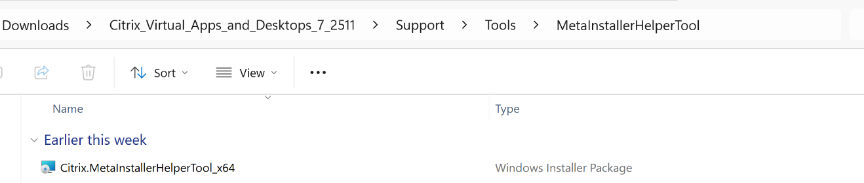
-
Double-click the Citrix.MetaInstallerHelperTool_x64.msi to install the tool.
Note:
This tool is not part of the VDA. You can install it on a VDA or on any local device.
-
After installation, launch the application as an Administrator by searching for “MetaInstallerHelperTool” in the Start Menu.

3. User Interface (UI) Overview
Upon launching the application “MetaInstallerHelperTool”, the main user interface will appear, designed for intuitive navigation and ease of use.
The “Home” section provides descriptions of the guides in the “How to” section and functional descriptions of the tools for checking SCCM sequences, generating task sequence templates, and analyzing VDA installation log.
You can access these guides and tools by selecting the corresponding tabs from the left-hand navigation panel.
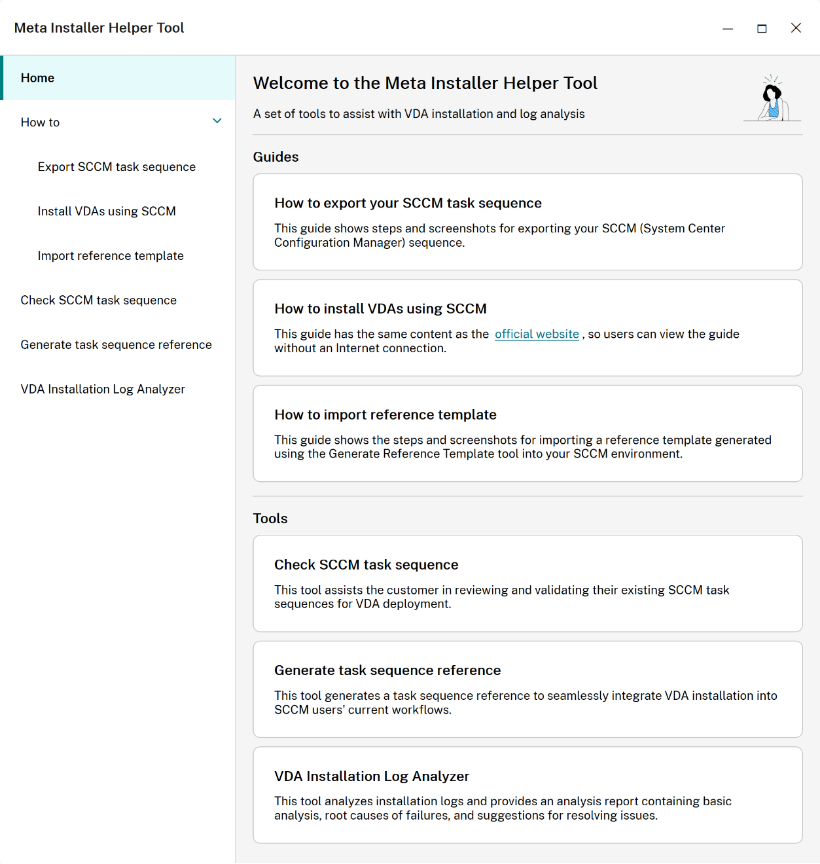
The “How to” section provides guides for exporting task sequences, installing VDAs using SCCM, and importing reference templates with screenshots and steps.
- See “How to export task sequences” to obtain SCCM task sequence for use with the “Check SCCM task sequence” tool.
- See “How to install VDAs using SCCM” to install VDAs. “Check SCCM task sequence” tool and “Generate task sequence template” tool will also refer to this guide.
- See “How to import reference template” to import the template generated by the “Generate task sequence template” tool into your SCCM environment as a reference template.
The Check SCCM task sequence, Generate task sequence template, and VDA Installation Log Analyzer sections let you perform the core tasks of the Meta Installer Helper Tool.
4. Tools
-
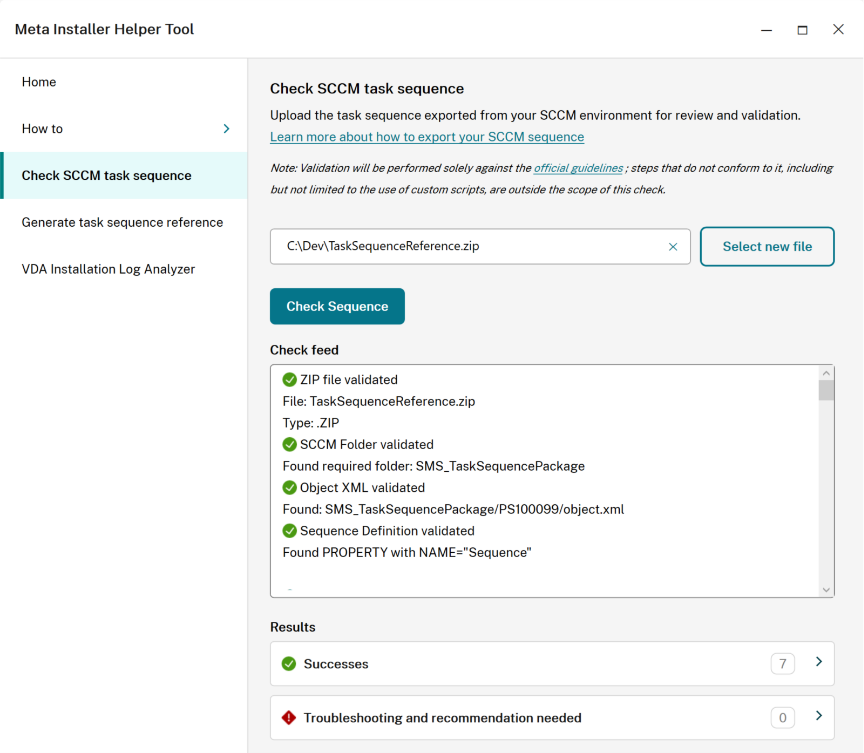
Check SCCM task sequence
Upload the task sequence exported from your SCCM environment for review and validation.
The tool will check if the uploaded file is a zip file and contains the required SCCM Task Sequence folder structure, the required object .xml file, and a valid task sequence definition. It will also do command-line parameter analysis and installation condition analysis based on the task sequence.
-
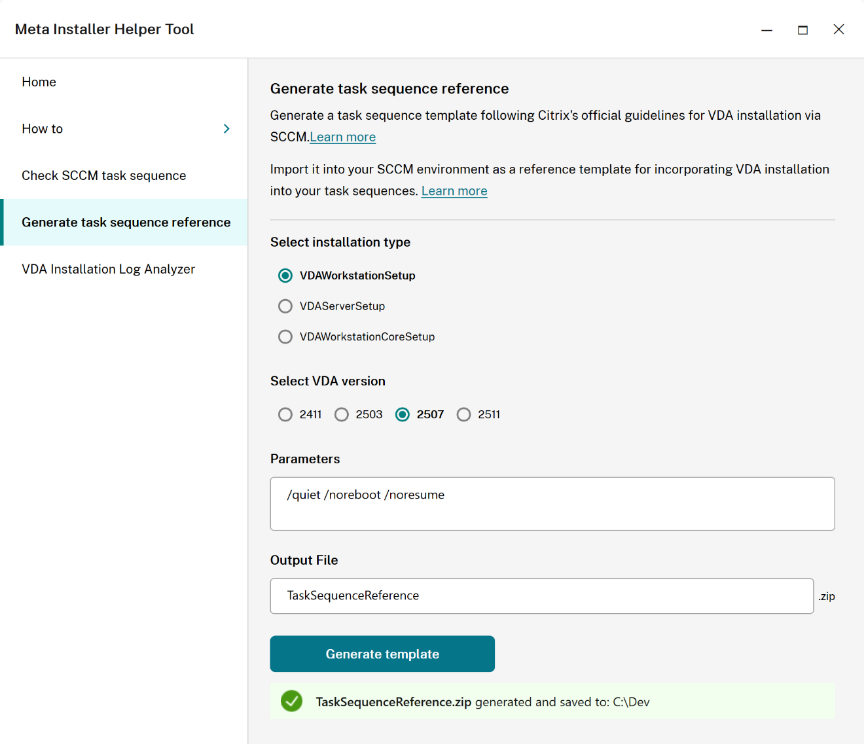
Generate task sequence reference
This tool generates a task sequence template following Citrix’s official guidelines for VDA installation via SCCM.
You can import it into your SCCM environment as a reference template for incorporating VDA installation into your task sequences.
-
VDA Installation Log Analyzer
Analyze installation logs directly on the VDA using Automatic mode or manually upload a .zip file containing VDA installation logs for analysis.
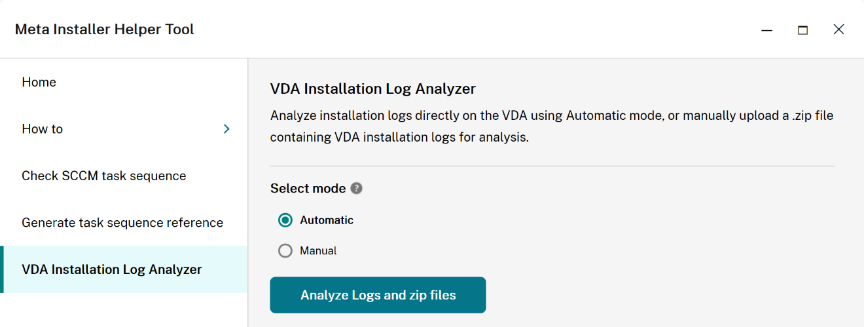
When running in Automatic mode on the VDA, the tool automatically detects the log storage path and analyzes the installation logs locally. The analysis results are saved, and all log files and reports are packaged into a single ZIP file.
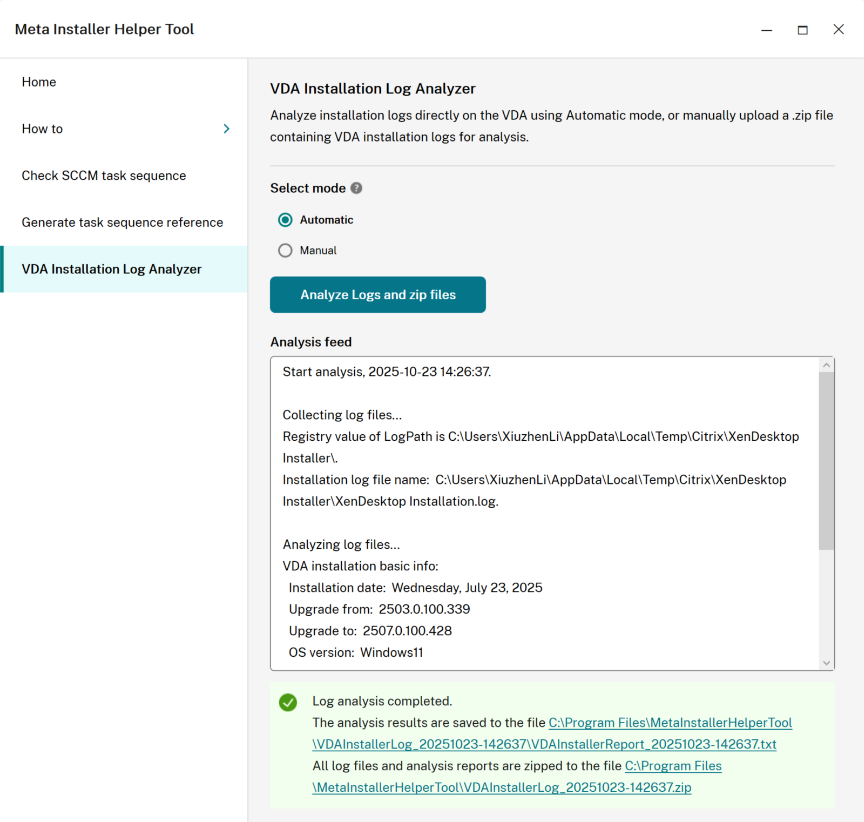
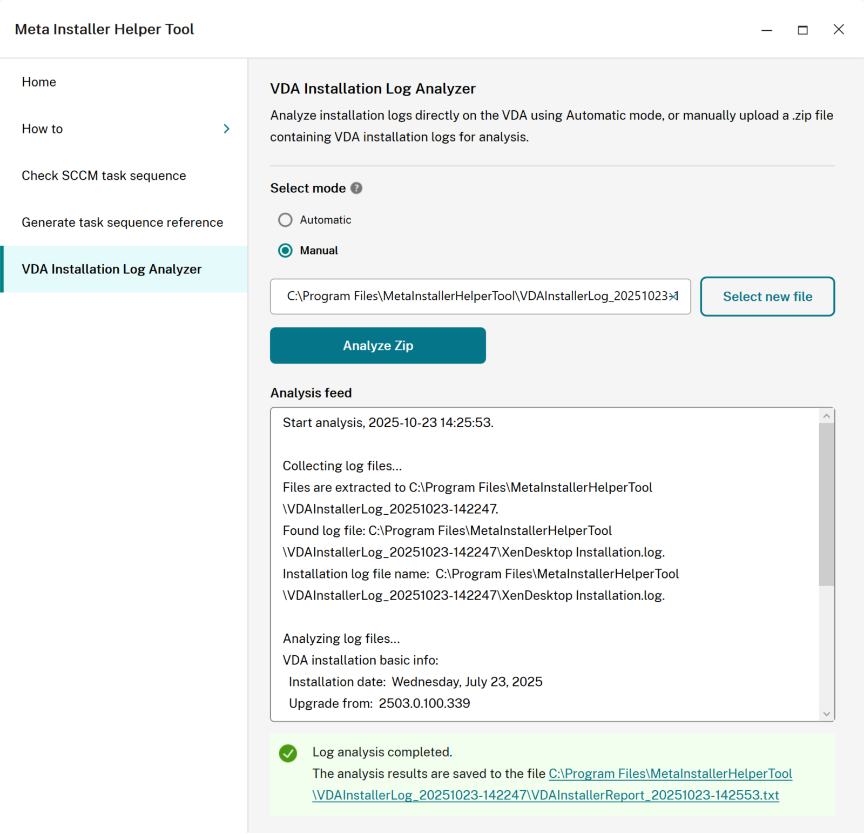
In Manual mode, you must upload a .zip file that contains the VDA installation logs for analysis. By default, the log files are stored in the following location:
%TEMP%\Citrix\XenDesktop InstallerIf the default log path has been modified, you can verify the current location in the Windows Registry at:
Computer\HKLM\Software\Citrix\MetaInstall\LogPathThe tool extracts the uploaded .zip file, analyzes its contents, and saves the analysis results for review.
Share
Share
In this article
This Preview product documentation is Citrix Confidential.
You agree to hold this documentation confidential pursuant to the terms of your Citrix Beta/Tech Preview Agreement.
The development, release and timing of any features or functionality described in the Preview documentation remains at our sole discretion and are subject to change without notice or consultation.
The documentation is for informational purposes only and is not a commitment, promise or legal obligation to deliver any material, code or functionality and should not be relied upon in making Citrix product purchase decisions.
If you do not agree, select I DO NOT AGREE to exit.