-
-
Cloud Connector Standalone Citrix Secure Ticketing Authority (STA) service
-
-
-
-
-
Migrate legacy MMC Group Policy templates to Web Studio
-
-
This content has been machine translated dynamically.
Dieser Inhalt ist eine maschinelle Übersetzung, die dynamisch erstellt wurde. (Haftungsausschluss)
Cet article a été traduit automatiquement de manière dynamique. (Clause de non responsabilité)
Este artículo lo ha traducido una máquina de forma dinámica. (Aviso legal)
此内容已经过机器动态翻译。 放弃
このコンテンツは動的に機械翻訳されています。免責事項
이 콘텐츠는 동적으로 기계 번역되었습니다. 책임 부인
Este texto foi traduzido automaticamente. (Aviso legal)
Questo contenuto è stato tradotto dinamicamente con traduzione automatica.(Esclusione di responsabilità))
This article has been machine translated.
Dieser Artikel wurde maschinell übersetzt. (Haftungsausschluss)
Ce article a été traduit automatiquement. (Clause de non responsabilité)
Este artículo ha sido traducido automáticamente. (Aviso legal)
この記事は機械翻訳されています.免責事項
이 기사는 기계 번역되었습니다.책임 부인
Este artigo foi traduzido automaticamente.(Aviso legal)
这篇文章已经过机器翻译.放弃
Questo articolo è stato tradotto automaticamente.(Esclusione di responsabilità))
Translation failed!
Migrate legacy MMC Group Policy templates to Web Studio
Note:
Starting with version 2511, Citrix Web Studio™ (web-based) is the only management console for Citrix Virtual Apps and Desktops™. Citrix Studio (MMC-based) has been removed from the installer. This article applies only to Web Studio. For information about Citrix Studio, see the equivalent article in Citrix Virtual Apps and Desktops 7 2212 or earlier.
Legacy MMC Studio Group Policy templates are stored in the administrator’s user profile on the local computer where MMC Studio runs. Web Studio templates are stored in the site database and are accessible to all administrators from any computer. Because no direct export or import path exists between the two formats, migrate a legacy template by using a policy as an intermediary.
Before you begin
- Make sure you have access to the MMC Studio installation where the legacy templates are stored.
- Make sure Web Studio has access to the same Citrix Virtual Apps and Desktops™ site.
- Note the settings in the legacy template so that you can verify them after migration.
Migrate a template
- In MMC Studio, navigate to the template you want to migrate.
- In the Actions pane, select Create Policy from Template.
- Follow the wizard to create a policy. For convenience, use the same name as the template.
- Wait up to 5 minutes for the policy to appear in Web Studio. This time is required for the site service to convert the policy data from the MMC format to the Web Studio format.
- Open Web Studio and select Policies in the left pane.
- Confirm that the policy is visible in the policies list.
- Select the policy, then select … More in the ribbon and click Save as Template.
- Follow the wizard to create the Web Studio template.
After migration, the template is stored in the site database and is accessible to all administrators who use Web Studio from any computer.
Verify the migration
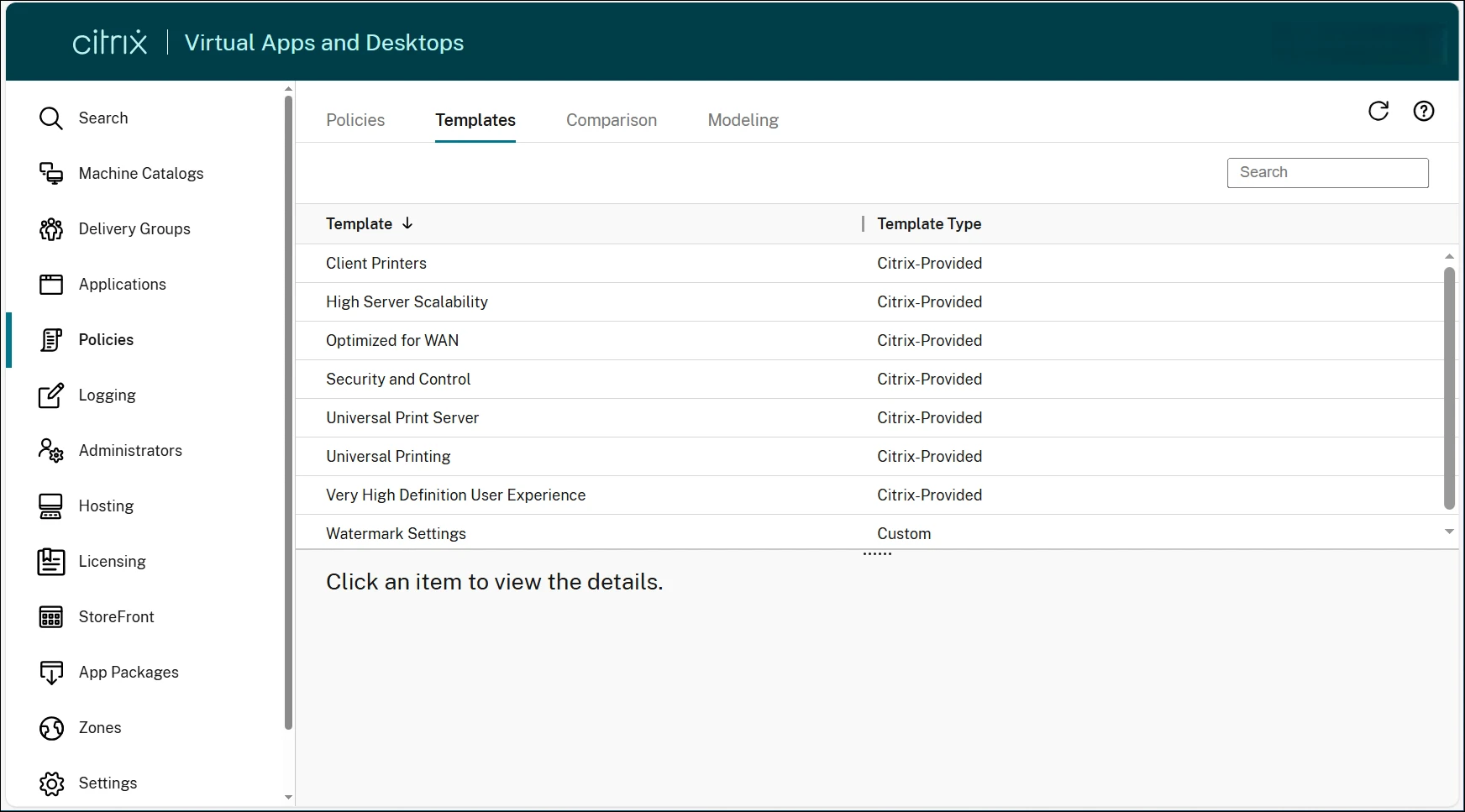
- In Web Studio, select the Templates tab in the Policies node.
- Confirm that the migrated template is visible.
- Compare the settings with the original MMC template to confirm they match.
After you verify the migration, you can retire the original MMC template. The MMC template remains local to the computer where it was created.
Example
The following example shows how to migrate a template named Watermark Settings that contains watermark configurations shared across multiple sites.
-
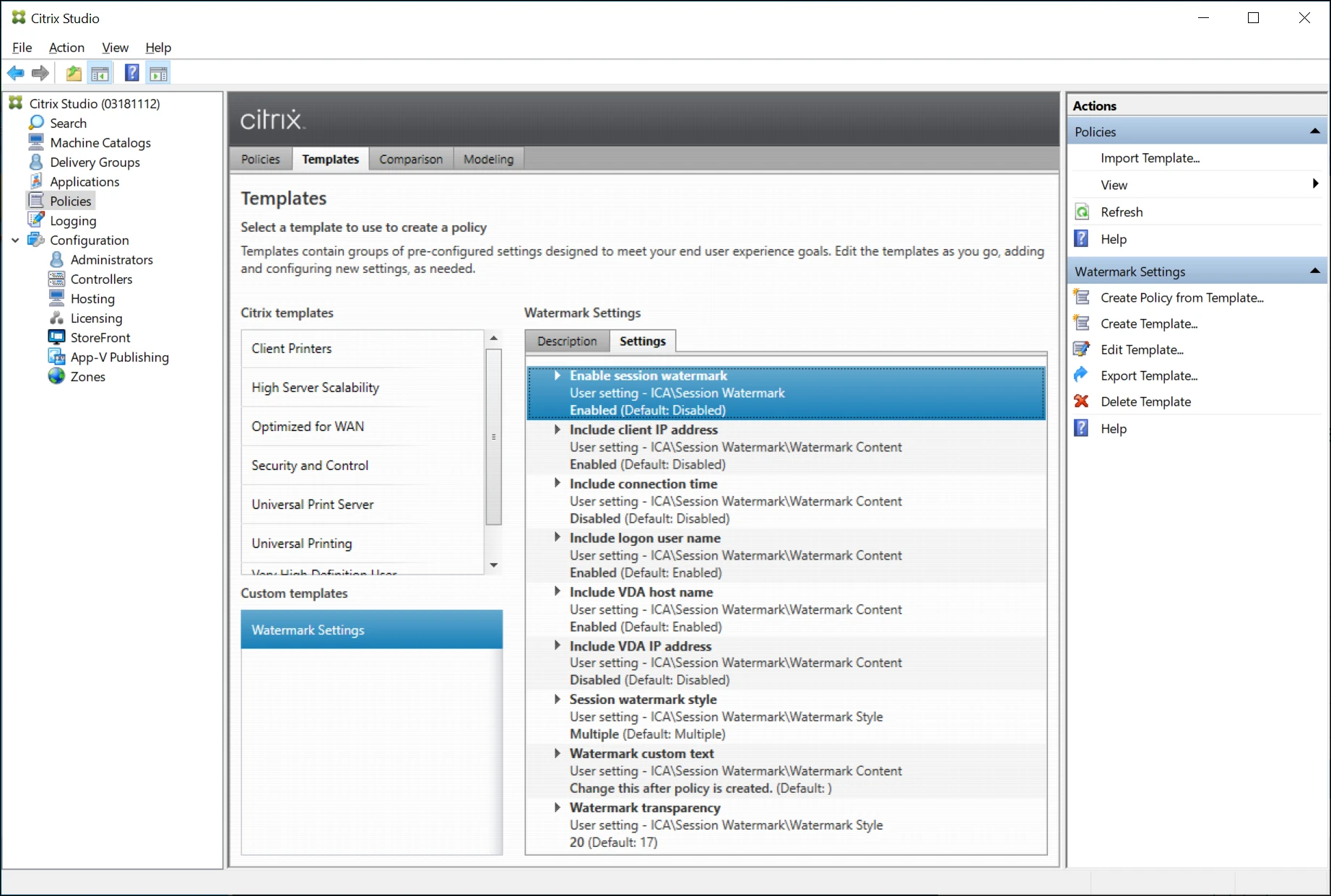
In MMC Studio, locate the Watermark Settings template. In the Actions pane, click Create Policy from Template.
-
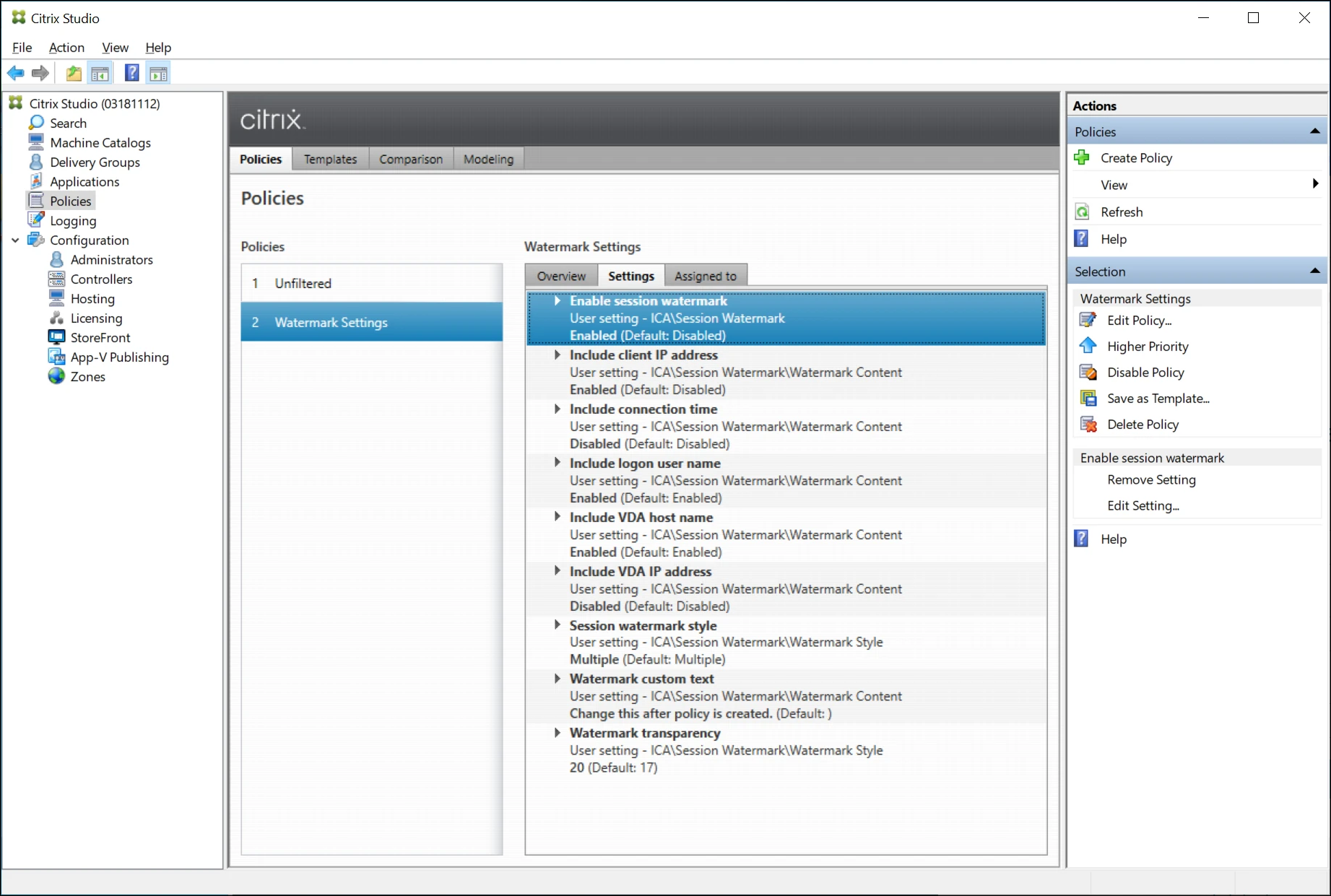
Follow the wizard to create a policy. For convenience, name the policy Watermark Settings to match the template.
-
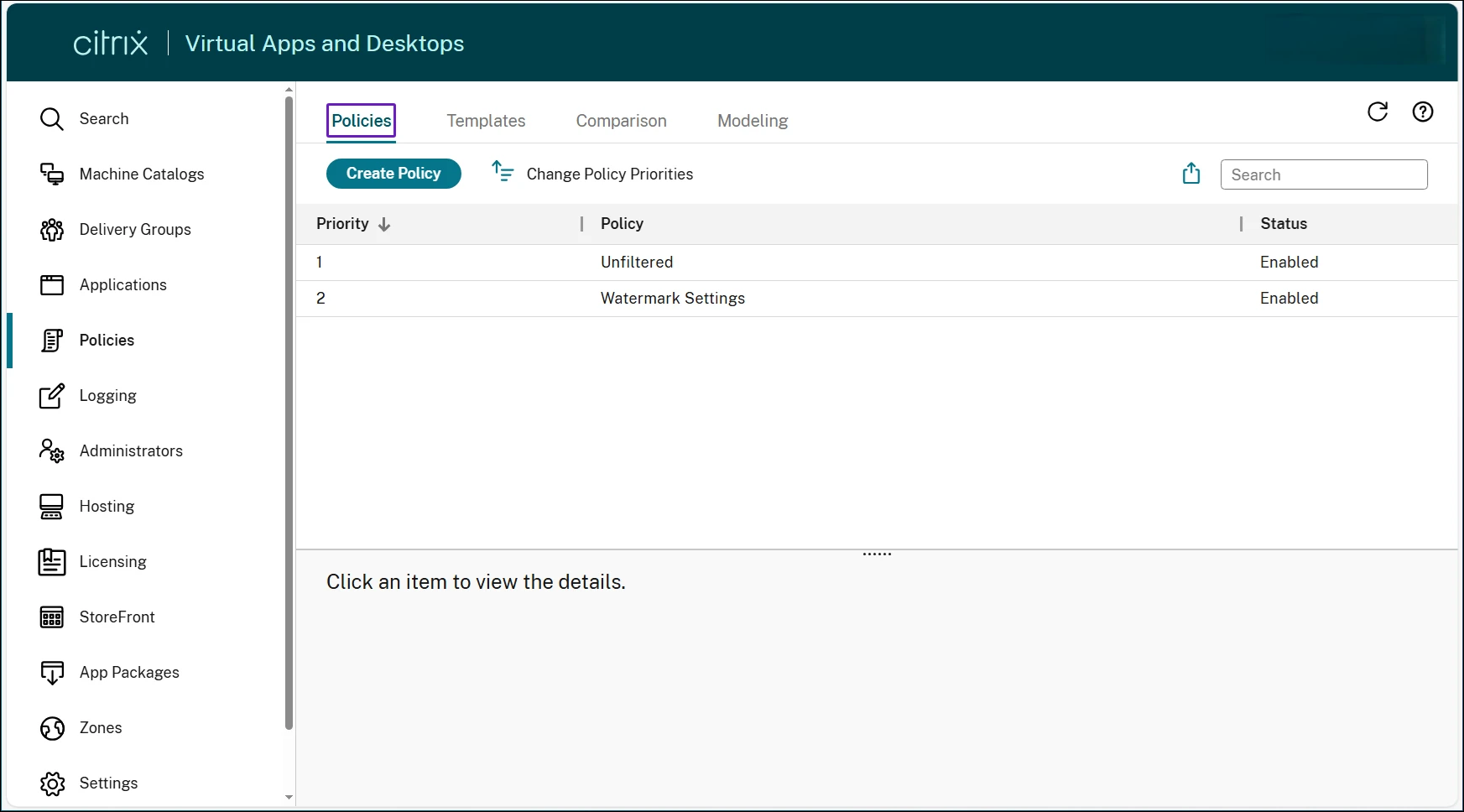
Wait up to 5 minutes, then open Web Studio. Verify that the policy Watermark Settings appears in the policies list.
Note:
At this point, the template does not yet appear on the Templates tab. The policy is the intermediary — you use it to create the Web Studio template in the next step.
-
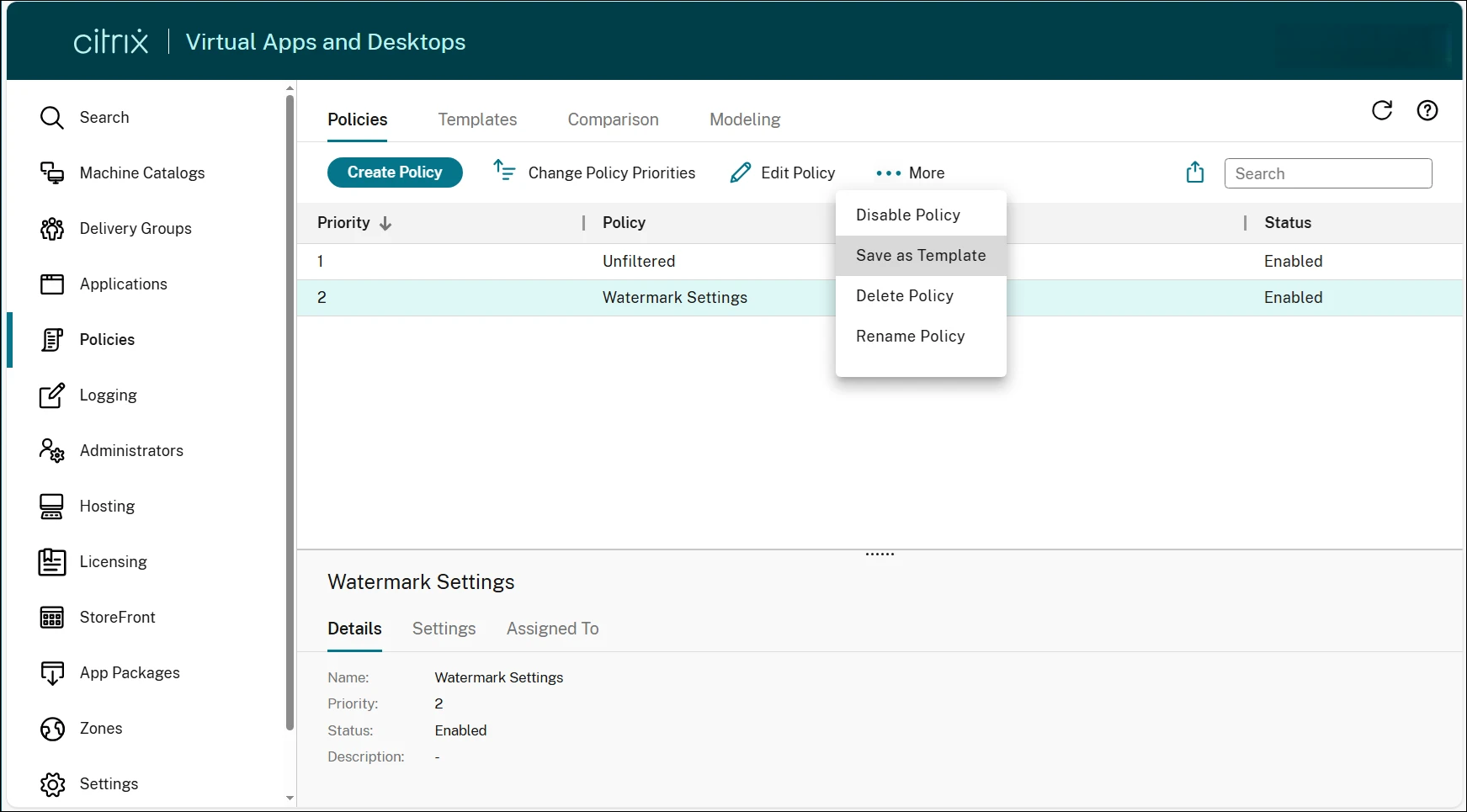
Select the Watermark Settings policy, then select … More in the ribbon and click Save as Template.
-
Follow the wizard to create the Web Studio template.
-
Select the Templates tab. The Watermark Settings template is now visible and accessible to all administrators from any computer that has access to the site.
Related content
For more information about managing templates in Web Studio, see Manage policy templates.
Share
Share
In this article
This Preview product documentation is Citrix Confidential.
You agree to hold this documentation confidential pursuant to the terms of your Citrix Beta/Tech Preview Agreement.
The development, release and timing of any features or functionality described in the Preview documentation remains at our sole discretion and are subject to change without notice or consultation.
The documentation is for informational purposes only and is not a commitment, promise or legal obligation to deliver any material, code or functionality and should not be relied upon in making Citrix product purchase decisions.
If you do not agree, select I DO NOT AGREE to exit.