-
Interface of the Scout Console
-
-
-
Advanced device configuration and Advanced options
-
-
-
Control Application Visibility with the ShowApp Parameter
-
-
-
Client remote management by commands
-
This content has been machine translated dynamically.
Dieser Inhalt ist eine maschinelle Übersetzung, die dynamisch erstellt wurde. (Haftungsausschluss)
Cet article a été traduit automatiquement de manière dynamique. (Clause de non responsabilité)
Este artículo lo ha traducido una máquina de forma dinámica. (Aviso legal)
此内容已经过机器动态翻译。 放弃
このコンテンツは動的に機械翻訳されています。免責事項
이 콘텐츠는 동적으로 기계 번역되었습니다. 책임 부인
Este texto foi traduzido automaticamente. (Aviso legal)
Questo contenuto è stato tradotto dinamicamente con traduzione automatica.(Esclusione di responsabilità))
This article has been machine translated.
Dieser Artikel wurde maschinell übersetzt. (Haftungsausschluss)
Ce article a été traduit automatiquement. (Clause de non responsabilité)
Este artículo ha sido traducido automáticamente. (Aviso legal)
この記事は機械翻訳されています.免責事項
이 기사는 기계 번역되었습니다.책임 부인
Este artigo foi traduzido automaticamente.(Aviso legal)
这篇文章已经过机器翻译.放弃
Questo articolo è stato tradotto automaticamente.(Esclusione di responsabilità))
Translation failed!
Control Application Visibility with the ShowApp Parameter
Goal
This guide explains how to use the ShowApp parameter in eLux to control whether an application is visible to users based on device properties or environmental conditions. Administrators can define conditional expressions so that applications appear only when specific criteria are met.
This capability helps administrators:
- Restrict applications to certain devices or hardware models
- Show applications only for specific OS versions or configurations
- Hide applications dynamically when device conditions change
The feature was introduced in eLux 7 2601.0.
Prerequisites
Before configuring ShowApp, ensure the following:
- You have administrative access to Scout.
- The application is already configured in Scout.
- You can modify application free parameters.
- Devices are running eLux 7.2601 or later.
How ShowApp Works
The ShowApp parameter contains a boolean expression that evaluates device properties.
An application will only appear on the user’s desktop if the expression evaluates to true. If the expression evaluates to false, the application is hidden.
Each condition follows this format of Property(GLOB):
- PROPERTY – a device attribute such as hostname, OS version, CPU, or memory.
-
GLOB – a pattern used to match the value (supports wildcards like
*).
Multiple conditions can be combined using boolean operators:
ANDORNOT- Parentheses
()for grouping expressions
Step-by-Step: Configure ShowApp in Scout
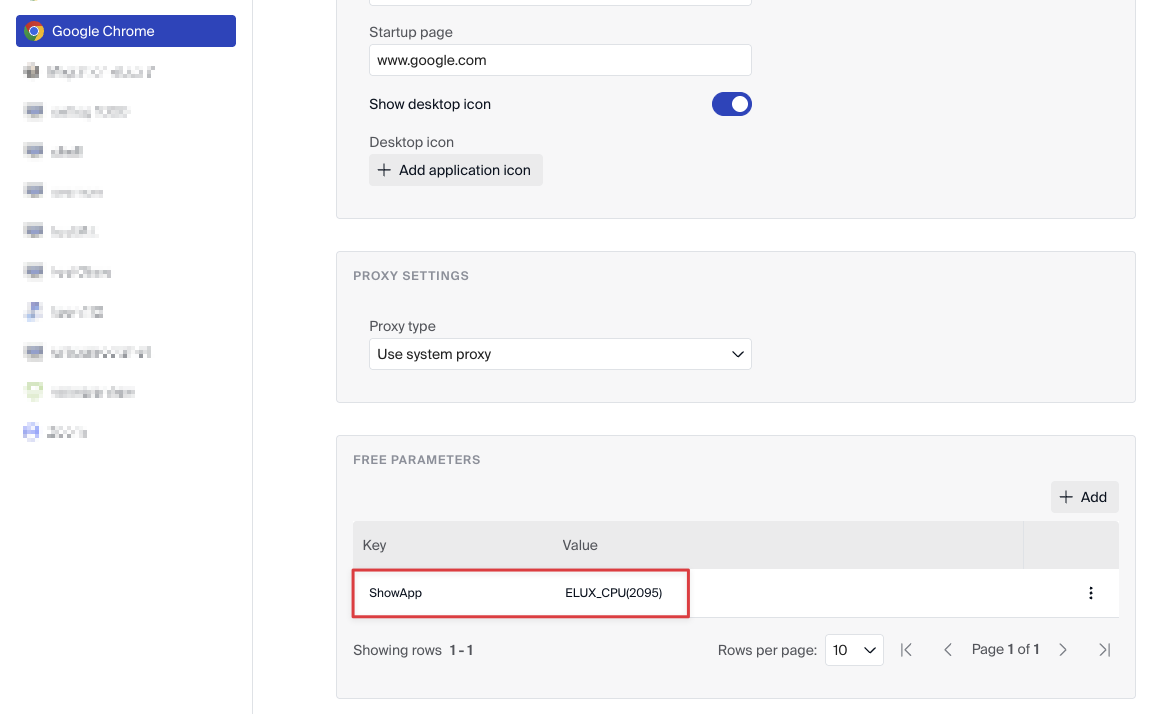
1. Open the Application Configuration
- Open Scout.
- Navigate to the desired device profile.
- Select the application you want to control.
2. Add the ShowApp Parameter
- Go to Free parameters for the application.
- Add the parameter:
ShowApp= - Replace
<expression>with your conditional logic.
Example:
ShowApp=ELUX_HOSTNAME(DellPrecision*)
This configuration shows the application only on devices whose hostname begins with DellPrecision.
3. Deploy the Configuration
- Save the profile configuration.
- Apply the profile to the relevant devices.
- Restart or refresh the device configuration if required.
The application will appear only when the ShowApp expression evaluates to true.
Example Expressions
Match a Specific Hostname
ELUX_HOSTNAME(DellPrecision3260)
Application appears only on a device with this exact hostname.
Match Multiple Devices with a Wildcard
ELUX_HOSTNAME(DellPrecision*)
Application appears on any device whose hostname begins with DellPrecision.
Combine Multiple Conditions
ELUX_OSVERSION(7.2507.0-3) AND ELUX_SERIAL(71T0ZP3) AND ELUX_MEMORY(8192)
Application appears only when:
- OS version matches
- Serial number matches
- Device has exactly 8192 MiB RAM
All conditions must be satisfied because of the AND operator.
Complex Expression Example
ELUX_CPU(3900) OR ELUX_OSNAME(eLux) AND (ELUX_OSVERSION(7.2507.0-3) OR ELUX_SERIAL(71T0ZP3))
This example combines multiple conditions using both AND and OR operators.
Available Device Properties
Common properties that can be used in ShowApp expressions include:
ELUX_HOSTNAMEELUX_OSNAMEELUX_OSVERSIONELUX_SERIALELUX_SUPPLIERELUX_DEVICETYPEELUX_BIOSELUX_CPUELUX_PRODUCTELUX_KERNELELUX_FLASHELUX_IDFELUX_MACELUX_IPELUX_NETMASKELUX_BROADCASTELUX_NETADDRELUX_FLASHSIZEELUX_MEMORYELUX_GRAPHICS
These values are collected by the system during boot and configuration updates.
Troubleshooting
The evaluation of ShowApp expressions can be inspected in the following log files.
eluxd Log /tmp/eluxd.log
Search for entries containing: showapp. This log records how the expression was parsed and whether it evaluated to true or false.
Desktop Log /tmp/ucdesktop.log
This log records when applications are hidden from the desktop because the ShowApp expression evaluated to false.
Important Behavior
- Device property values are refreshed during boot and configuration changes.
- If device conditions change while an application is running and the expression evaluates to false, the application may be terminated automatically.
- The eLux desktop hides application icons when the application is marked as hidden.
Best Practices
- Start with simple expressions and test them before deploying complex logic.
- Use wildcards (
*) to simplify hostname or device matching. - Verify behavior using log files during initial testing.
- Document expressions used in Scout profiles to simplify maintenance.
Share
Share
This Preview product documentation is Citrix Confidential.
You agree to hold this documentation confidential pursuant to the terms of your Citrix Beta/Tech Preview Agreement.
The development, release and timing of any features or functionality described in the Preview documentation remains at our sole discretion and are subject to change without notice or consultation.
The documentation is for informational purposes only and is not a commitment, promise or legal obligation to deliver any material, code or functionality and should not be relied upon in making Citrix product purchase decisions.
If you do not agree, select I DO NOT AGREE to exit.