This content has been machine translated dynamically.
Dieser Inhalt ist eine maschinelle Übersetzung, die dynamisch erstellt wurde. (Haftungsausschluss)
Cet article a été traduit automatiquement de manière dynamique. (Clause de non responsabilité)
Este artículo lo ha traducido una máquina de forma dinámica. (Aviso legal)
此内容已经过机器动态翻译。 放弃
このコンテンツは動的に機械翻訳されています。免責事項
이 콘텐츠는 동적으로 기계 번역되었습니다. 책임 부인
Este texto foi traduzido automaticamente. (Aviso legal)
Questo contenuto è stato tradotto dinamicamente con traduzione automatica.(Esclusione di responsabilità))
This article has been machine translated.
Dieser Artikel wurde maschinell übersetzt. (Haftungsausschluss)
Ce article a été traduit automatiquement. (Clause de non responsabilité)
Este artículo ha sido traducido automáticamente. (Aviso legal)
この記事は機械翻訳されています.免責事項
이 기사는 기계 번역되었습니다.책임 부인
Este artigo foi traduzido automaticamente.(Aviso legal)
这篇文章已经过机器翻译.放弃
Questo articolo è stato tradotto automaticamente.(Esclusione di responsabilità))
Translation failed!
Citrix 截图工具在 Assistant 中的集成
概述
Citrix 截图工具允许用户在其 Citrix Virtual Apps and Desktops 会话中无缝捕获叠加内容和重定向内容的屏幕截图。
传统上,本机会话内屏幕截图工具无法捕获已优化或卸载到客户端端点的内容。由于此媒体是在本地而不是在服务器 (VDA) 上呈现的,因此优化的元素(例如 Microsoft Teams 视频或浏览器内容重定向 (BCR) 窗口)通常在标准屏幕截图中显示为纯黑色方框或占位符图形。
Citrix 截图工具通过启用所有重定向内容的会话内屏幕截图功能来弥补这一差距。这确保了文档、故障排除和协作的完整准确捕获,精确捕获用户所看到的会话。
支持的内容
Citrix 截图工具成功捕获由以下功能优化的内容:
-
浏览器内容重定向 (BCR): 捕获卸载的 Web 渲染。有关此功能的详细信息,请参阅浏览器内容重定向文档
-
HTML5 多媒体重定向: 捕获优化的 HTML5 视频元素。有关此功能的详细信息,请参阅 HTML5 多媒体重定向文档
-
Windows 媒体重定向: 捕获重定向的 Windows 媒体播放。有关此功能的详细信息,请参阅 Windows 媒体重定向文档
-
统一通信 (UC) 优化: 捕获 HDX WebRTC / UCSDK 优化应用程序(例如 Microsoft Teams VDI 1.0、Amazon Connect、Five9、Ring Central)和第三方优化应用程序(例如 Microsoft Teams VDI 2.0 (SlimCore)、Zoom 和 Webex)的叠加视频和 UI 元素
系统要求
-
虚拟投递代理 (VDA): 版本 2603 或更高版本。
-
Citrix Workspace 应用程序: 适用于 Windows 的 Citrix Workspace 应用程序版本 2603 或更高版本。
-
支持的端点操作系统: 仅限 Windows。(注意:目前不支持 macOS、Linux 和 ChromeOS)。
配置
Citrix 截图工具通过 Citrix 策略进行控制。默认情况下,捕获重定向内容的功能已启用。
要配置策略:
-
打开 Citrix Studio(或 Web Studio)并导航到策略。
-
找到 屏幕截图重定向内容 策略设置。
-
选择已启用以允许用户捕获叠加内容,或者如果您的环境有严格的安全要求禁止屏幕截图,则选择禁用。
注意:
Citrix 截图工具遵守现有的安全边界。如果 Citrix 应用保护处于活动状态,该工具将自动禁用重定向内容的捕获,以防止数据泄露。有关更多信息,请参阅应用保护文档。
用法
要捕获包含优化或重定向叠加内容的会话内屏幕截图,请按照以下步骤操作:
-
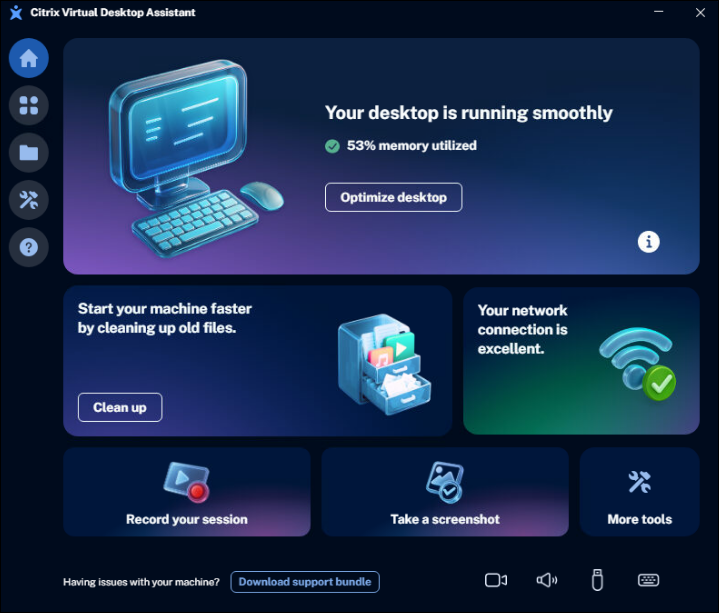
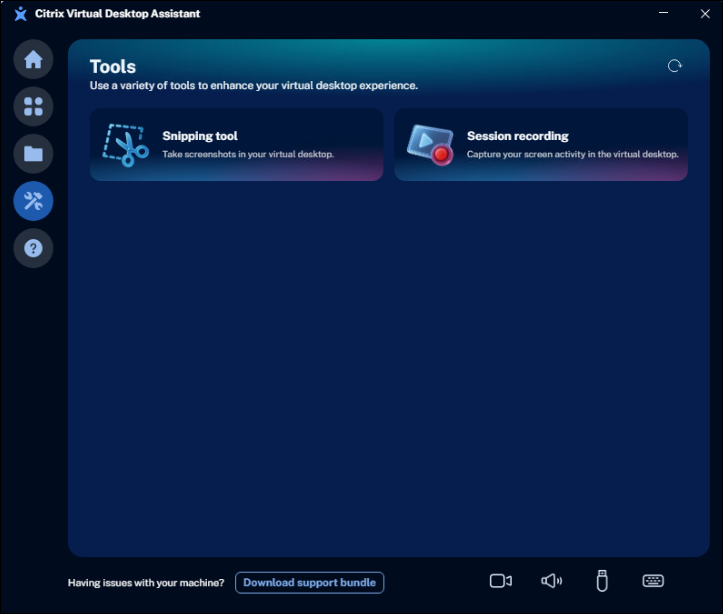
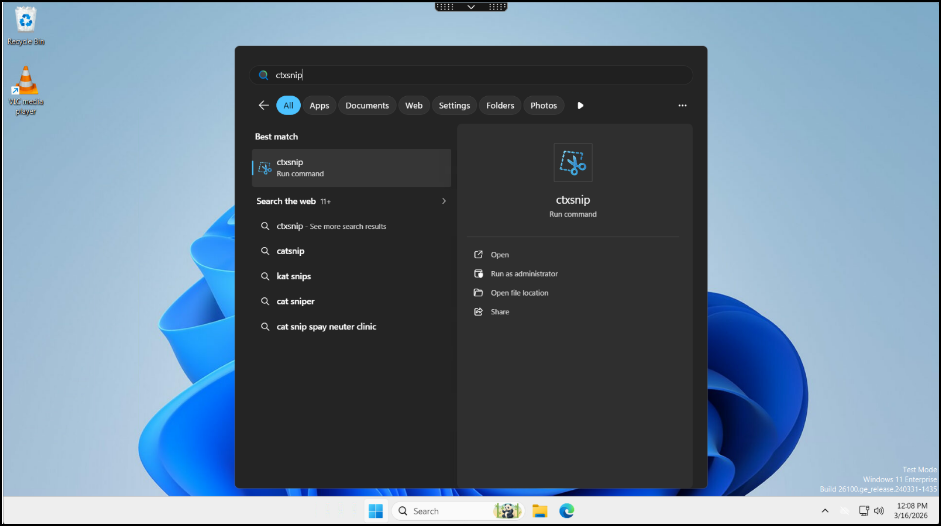
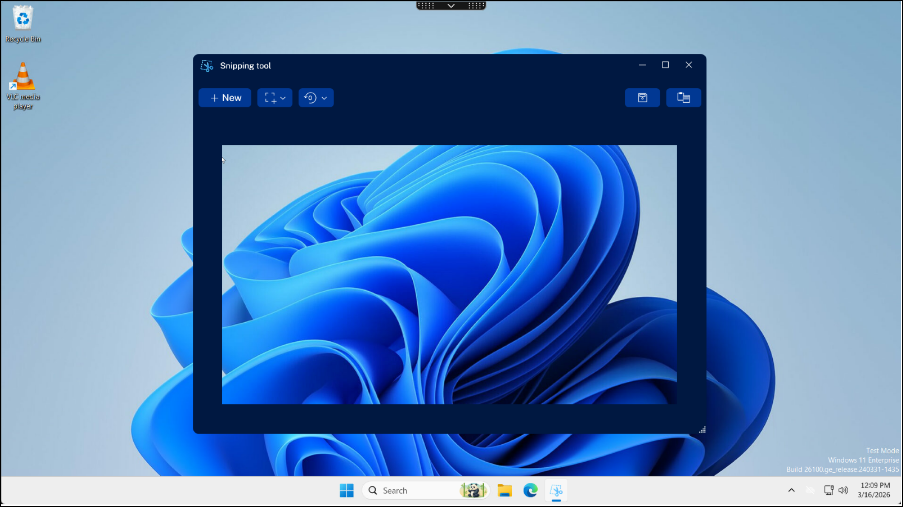
Citrix 建议直接从 Citrix 助手(从主页中的更多工具)启动 Citrix 截图工具。有关该应用程序的更多信息,请参阅Citrix 助手文档。(或者,您可以在虚拟桌面会话中打开 Windows“开始”菜单以启动 Citrix 截图工具)
-
单击“新建”按钮开始捕获。
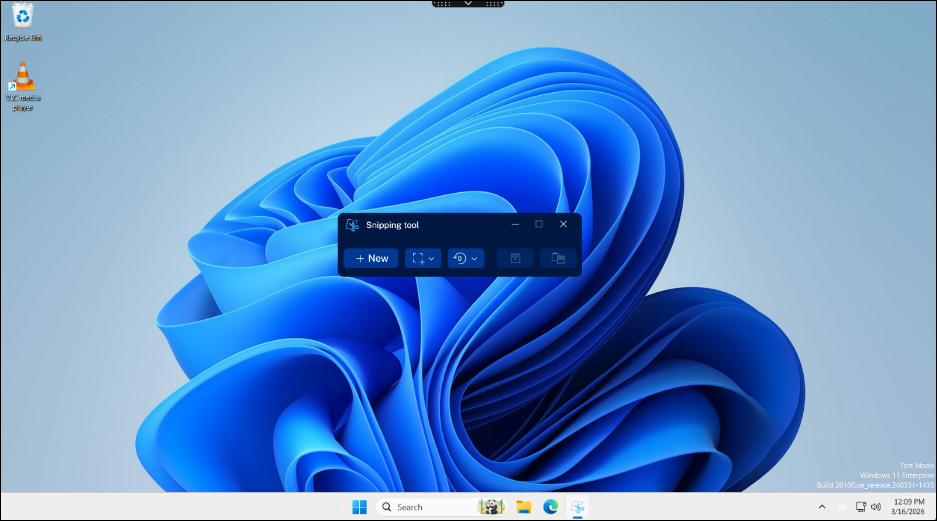
-
点击并拖动光标以选择您要捕获的屏幕特定区域。捕获屏幕截图后,您可以直接将图像复制到剪贴板,或将其保存为 .PNG 或 .BMP 文件。
附加选项
Citrix 截图工具包含用于自定义屏幕截图的附加设置:
-
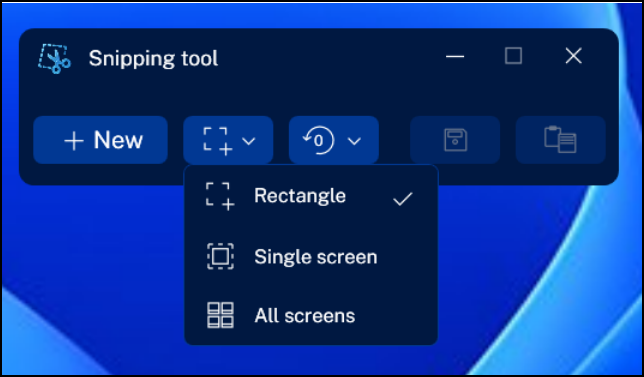
截图区域: 默认情况下,该工具会捕获屏幕上自定义的用户定义区域。您可以将此模式更改为捕获整个会话的全屏截图。如果您使用多显示器设置,全屏模式将捕获所有活动屏幕。
-
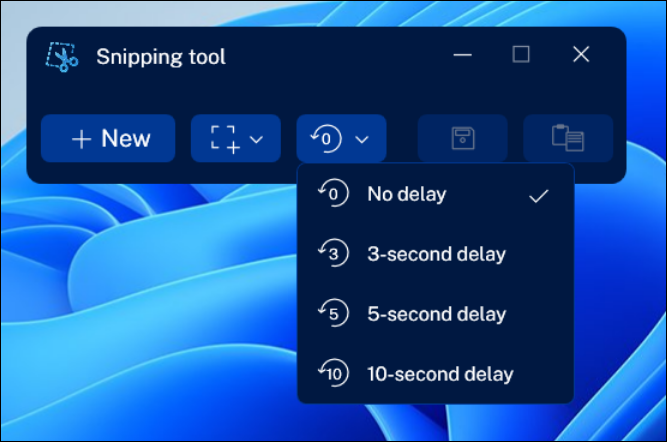
延迟计时器:要捕获临时屏幕元素(例如下拉菜单或悬停状态),请使用“延迟”按钮选择倒计时器。该工具将等待指定持续时间,然后冻结屏幕并捕获截图。
故障排除
未捕获叠加内容
-
验证 Citrix Studio 中“屏幕截图重定向内容”策略是否设置为“已启用”。
-
确保您的虚拟投递代理 (VDA) 和 Citrix Workspace 应用程序都满足最低版本要求(2603 或更高版本)。
-
检查应用程序保护或其他反屏幕捕获安全策略是否处于活动状态。如果这些安全边界已启用,它们将有意阻止该工具的功能以防止数据泄露。
屏幕截图中持续出现黑条或占位符消息
- 验证您正在主动使用 Citrix 截图工具来捕获屏幕。本机操作系统屏幕截图实用程序(例如默认的 Windows 截图工具)和第三方捕获应用程序无法拦截优化的覆盖内容,并且仍会导致黑框。
Citrix 截图工具不可用或缺失
- Ensure that your Virtual Delivery Agent (VDA) is updated to version 2603 or later. The application will not be present or supported on older VDA releases.
This Preview product documentation is Citrix Confidential.
You agree to hold this documentation confidential pursuant to the terms of your Citrix Beta/Tech Preview Agreement.
The development, release and timing of any features or functionality described in the Preview documentation remains at our sole discretion and are subject to change without notice or consultation.
The documentation is for informational purposes only and is not a commitment, promise or legal obligation to deliver any material, code or functionality and should not be relied upon in making Citrix product purchase decisions.
If you do not agree, select I DO NOT AGREE to exit.