
在 Azure 中使用准备好的映像创建目录
创建准备好的映像,并使用这些准备好的映像通过以下方式创建 MCS 计算机目录:
使用准备好的映像创建 MCS 计算机目录的关键步骤如下:
-
创建映像定义和初始映像版本。
-
使用映像版本作为准备好的映像来创建目录
使用 Studio
创建映像定义和初始映像版本
要创建映像定义和初始映像版本,请执行以下操作:
-
在 Studio 中,转到映像节点,然后单击创建映像定义。在简介页面上,单击下一步。
-
在映像定义页面上,为映像定义指定操作系统类型和会话类型。
-
选择现有资源组或创建新资源组以保存映像资源。要启用映像共享,请选择在 Azure 计算库中存储映像版本,然后选择创建新库或使用现有库来保存其映像版本。
-
在映像页面上,选择资源(仅列出适用于所设置连接的资源)和要用作创建映像版本模板的主映像。您可以选中使用计算机配置文件复选框并选择一个计算机配置文件。注意:
-
在选择映像之前,请验证主映像是否已安装 VDA 2311 或更高版本,并且 VDA 上已安装 MCSIO 驱动程序。
-
如果要使用机密 VM 类型准备的映像创建 MCS 目录,请使用机密 VM 类型主映像和机密 VM 类型计算机配置文件创建准备的映像。有关准备机密 VM 类型主映像和计算机配置文件的信息,请参阅 Azure 机密 VM。
-
-
在存储和许可证类型页面上,选择要在映像准备过程中使用的存储和许可证类型。注意:如果在映像页面上选择计算机配置文件,则计算机配置文件的许可证类型会根据配置文件设置预先选择。
-
在计算机规范页面上,选择计算机大小。如果在映像页面上选择计算机配置文件,则默认选择计算机配置文件的计算机大小。
-
在网卡页面上,为准备映像选择或添加网卡。对于每个网卡,选择一个关联的虚拟网络。
-
在磁盘设置页面上,选择客户管理的加密密钥 (CMEK)。如果计算机配置文件没有 CMEK 但主映像有,则会预先选择主映像中的 CMEK。
-
在映像定义页面上,如果启用在 Azure 计算库中存储映像版本,则会出现映像共享页面,您可以在其中选择要共享映像版本的资源。
-
在版本描述页面上,输入所创建的初始映像版本的描述。
-
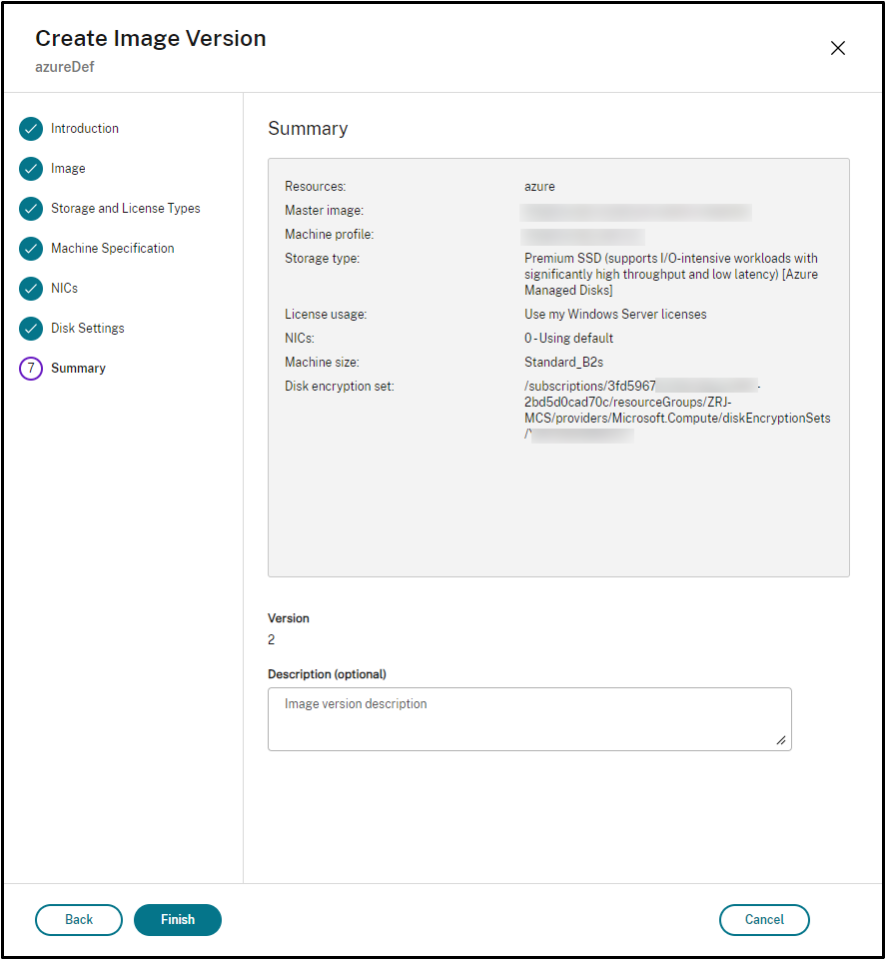
在摘要页面上,检查映像定义和所创建的初始映像版本的详细信息。输入映像定义的名称和描述。单击完成。
创建映像版本
映像版本允许管理特定映像的不同迭代或更新。此功能使您能够为不同目的维护映像的多个版本。
要从初始映像版本创建映像版本,请执行以下操作:
注意:
所有映像版本的主机单元必须相同。
-
转到“映像”节点,选择一个映像版本或映像定义,然后单击“创建映像版本”。
-
在“映像定义”页面上,您可以更改主机单元,并为该映像版本重新选择主映像和计算机配置文件。
-
如果您希望映像版本的配置与初始配置的映像版本不同,请在“创建映像版本”对话框的“存储和许可证类型”、“计算机规范”、“NIC”和“磁盘设置”页面上配置设置。
-
如果映像定义启用了“在 Azure 计算库中存储映像版本”,您可以在“映像共享”页面中选择要与之共享映像版本的资源。
-
为映像版本添加描述。单击“完成”。
注意:
如果映像版本创建因任何原因失败,底部的“故障排除”选项卡会提供“重试”选项。
共享准备好的映像
要在 Azure 的不同主机单元之间共享准备好的映像,请按照以下步骤操作:
-
右键单击映像版本并选择“管理映像共享”。Azure 环境中的所有主机单元都会显示。创建映像版本的资源将禁用任何操作。
-
选择要与之共享映像的主机单元,然后单击“保存”。“共享状态”列显示“正在进行”。
-
单击“资源”选项卡以获取有关共享状态的更多详细信息。
注意:
当映像版本共享状态为进行中时,删除映像版本或管理映像共享选项将被禁用。
从“映像”节点创建计算机目录
使用“映像”节点中的“创建目录”选项,使用映像版本创建目录。
另外,您可以在“计算机目录”节点中创建目录时选择版本,链接到目录创建工作流中的准备好的映像选项。请参阅从“计算机目录”节点创建计算机目录
要从“映像”节点创建 MCS 计算机目录,请执行以下操作:
-
选择一个映像版本,然后单击“创建目录”。在“简介”页面上单击“下一步”。
-
在“桌面体验”页面上,选择所需的桌面体验。
-
从“映像”页面到“磁盘设置”页面,设置将根据所选映像版本预先选择。
-
在“资源组”页面上,您可以选择创建新的资源组或使用现有资源组来放置此目录的资源。
-
完成以下页面上的设置。
-
在“摘要”页面上,检查计算机目录的详细信息。输入计算机目录的名称和描述。单击“完成”。
-
转到“计算机目录”节点以查看创建的计算机目录。
从“计算机目录”节点创建计算机目录
要从“计算机目录”节点创建 MCS 计算机目录,请执行以下操作:
-
单击左侧导航窗格中的“计算机目录”。
-
单击“创建计算机目录”。出现“计算机目录设置”页面。依次单击“下一步”通过“简介”和“计算机类型”页面。
-
在“计算机管理”页面上,选择以下设置:
-
选择“已进行电源管理的计算机(例如,虚拟机或刀片式 PC)。”.
-
选择“Citrix 预配技术”。然后,选择“Citrix Machine Creation Services™”。
-
在“资源”字段中,列出了属于不同区域的资源。选择任意 Azure 网络资源,然后单击“下一步”。
-
-
在“映像”页面上: 对于准备好的映像类型,请按照以下步骤操作:
-
选择“准备好的映像”。
-
在“准备好的映像”下,选择映像定义的映像版本。如有需要,为所选的准备好的映像版本添加备注。
-
单击映像版本名称。要查看有关所选映像版本的更多详细信息,请单击带下划线的版本号。
-
如果所选映像版本配置了计算机配置文件,请选择一个计算机配置文件。如果所选映像版本未配置计算机配置文件,则无法选择使用计算机配置文件。
-
-
在以下页面上配置设置。
-
在“磁盘设置”页面上,如果所选的准备好的映像使用磁盘加密集,则无法删除加密集,但可以将密钥更改为另一个加密密钥。
-
在“资源组”页面上,您可以选择创建新的资源组或使用现有资源组来放置此目录的资源。
-
完成以下页面上的设置。
-
在“摘要”页面上,检查计算机目录的详细信息。输入计算机目录的名称和描述。单击“完成”。
使用 PowerShell
创建准备好的映像
创建准备好的映像版本规范的详细 PowerShell 命令如下:
-
使用
Test-ProvImageDefinitionNameAvailable command检查可用的映像定义名称。例如,Test-ProvImageDefinitionNameAvailable -ImageDefinitionName <string[]> -
使用
New-ProvImageDefinition命令创建映像定义。例如,New-ProvImageDefinition -ImageDefinitionName image1 -OsType Windows -VdaSessionSupport MultiSession -
使用
Add-ProvImageDefinitionConnection命令在指定的托管连接中为映像定义创建新配置。Add-ProvImageDefinitionConnection的CustomProperties可以包括以下内容。如果不使用这些参数,则使用默认值。-
ResourceGroups:包含基础磁盘的资源组。 -
UseSharedImageGallery:基础磁盘类型的指示器。对于 ACG(映像共享),请使用true;对于快照,请使用false。 -
ImageGallery:当基础磁盘是 ACG 映像版本时的库名称。
例如,-
在快照和客户提供的资源组的情况下:
$CustomerOwnRsourceGroupProperties = @"
 <CustomProperties xmlns="http:// schemas.citrix.com/2014/xd/machinecreation" xmlns:xsi="http://www.w3.org/2001/XMLSchema-instance">
 <Property xsi:type="StringProperty" Name="ResourceGroups" Value="yangj_image" />
 </CustomProperties>
"@ -
在 ACG 和客户提供的资源组以及映像库的情况下:
$CustomerOwnAllProperties = @"
 <CustomProperties xmlns="http://schemas.citrix.com/2014/xd/machinecreation" xmlns:xsi="http://www.w3.org/2001/XMLSchema-instance">
 <Property xsi:type="StringProperty" Name="UseSharedImageGallery" Value="true" />
 <Property xsi:type="StringProperty" Name="ResourceGroups" Value="rg" />
 <Property xsi:type="StringProperty" Name="ImageGallery" Value="gallery" />
 </CustomProperties>
"@ -
在 ACG 和客户提供的资源组的情况下:
$CustomerOwnResourceGroupProperties = @"
 <CustomProperties xmlns="http://schemas.citrix.com/2014/xd/machinecreation" xmlns:xsi="http://www.w3.org/2001/XMLSchema-instance">
 <Property xsi:type="StringProperty" Name="UseSharedImageGallery" Value="true" />
 <Property xsi:type="StringProperty" Name="ResourceGroups" Value="rg" />
 </CustomProperties>
"@ -
在 ACG 和 Citrix 管理的资源组以及映像库的情况下:
$CustomerOwnResourceGroupNothingProperties = @"
 <CustomProperties xmlns="http://schemas.citrix.com/2014/xd/machinecreation" xmlns:xsi="http://www.w3.org/2001/XMLSchema-instance">
 <Property xsi:type="StringProperty" Name="UseSharedImageGallery" Value="true" />
 </CustomProperties>
 "@
Add-ProvImageDefinitionConnection -ImageDefinitionName image1 -HypervisorConnectionName Azure28 [-CustomProperties $CustomProperties] -
-
使用
New-ProvImageVersion命令创建映像版本。例如,New-ProvImageVersion -ImageDefinitionName image1 -Description "version 1" -
使用
Add-ProvImageVersionSpec命令将主映像版本规范添加到映像版本。例如,Add-ProvImageVersionSpec -ImageDefinitionName image1 -ImageVersionNumber 1 -HostingUnitName azure -MasterImagePath "XDHyp:\HostingUnits\azure\image.folder\azureresourcegroup.resourcegroup\win2022-snapshot.snapshot"注意:对于一个托管单元,您只能向一个映像版本添加一个主映像版本规范。 -
使用
New-ProvImageVersionSpec命令从主映像版本规范创建准备好的映像版本规范。New-ProvImageVersionSpec的 CustomProperties 可以包括以下内容。如果您不使用这些参数,则使用默认值:-
PreparedImageStorageType:用于准备好的映像的存储类型。默认为Standard_LRS,也可以是Premium_LRS或Standard_ZRS。Standard_ZRS为映像提供区域冗余。
New-ProvImageVersionSpec
 -SourceImageVersionSpecUid  c6e7384c-b2f8-46d6-9519-29a2c57ed3cb
 -NetworkMapping @{"0"="XDHyp:\HostingUnits\azure\virtualprivatecloud.folder\azureresourcegroup.resourcegroup\azure-vnet-eastus.virtualprivatecloud\dev.network"}
-ServiceOffering"XDHyp:\HostingUnits\azure\serviceoffering.folder\Standard_B2ms.serviceoffering" -CustomProperties "<CustomProperties xmlns=`"http://schemas.citrix.com/2014/xd/machinecreation`" xmlns:xsi=`"http://www.w3.org/2001/XMLSchema-instance`"></CustomProperties>" -RunAsynchronously -
-
您还可以使用
Add-ProvImageVersionSpecHostingUnit命令在所有托管连接中与另一个托管单元共享准备好的映像版本规范。Add-ProvImageVersionSpecHostingUnit的 CustomProperties 可以包括以下内容。如果您不使用这些参数,则使用源准备好的映像规范中的值:-
PreparedImageStorageType:用于准备好的映像的存储类型。
Add-ProvImageVersionSpecHostingUnit -ImageVersionSpecUid xxxxxxx -HostingUnitName AzureWest注意:一个托管单元和准备类型只能有一个准备好的实例。 -
创建映像定义、映像版本和准备好的映像版本规范的完整 Powershell 命令集示例:
New-ProvImageDefinition -ImageDefinitionName image1 -OsType Windows -VdaSessionSupport MultiSession

 $ImageDefinitionCustomProperties = @" <CustomProperties xmlns="http://schemas.citrix.com/2014/xd/machinecreation" xmlns:xsi="http://www.w3.org/2001/XMLSchema-instance"> <Property xsi:type="StringProperty" Name="UseSharedImageGallery" Value="true" /> <Property xsi:type="StringProperty" Name="ResourceGroups" Value="rg" /> <Property xsi:type="StringProperty" Name="ImageGallery" Value="gallery" /> </CustomProperties> "@

 Add-ProvImageDefinitionConnection -ImageDefinitionName image1 -HypervisorConnectionName Azure28 -CustomProperties $ImageDefinitionCustomProperties

 $imageVersion = New-ProvImageVersion -ImageDefinitionName image1 -Description "version 1"

 $SourceImageVersionSpec = Add-ProvImageVersionSpec -ImageVersionUid $imageVersion.ImageVersionUid ` -HostingUnitUid $hostingunit.HostingUnitUid ` -MasterImagePath "XDHyp:\HostingUnits\azure28\image.folder\abc.resourcegroup\def-snapshot.snapshot"

 $ImageVersionSpecCustomProperties = @'

 <CustomProperties xmlns="http://schemas.citrix.com/2014/xd/machinecreation" xmlns:xsi="http://www.w3.org/2001/XMLSchema-instance">

 <Property xsi:type="StringProperty" Name="PreparedImageStorageType" Value="Premium_LRS" />

 <Property xsi:type="StringProperty" Name="LicenseType" Value="Windows_Client" />

 </CustomProperties>

 '@

 New-ProvImageVersionSpec -NetworkMapping @{"0" = "XDHyp:\HostingUnits\azure28\virtualprivatecloud.folder\East US.region\virtualprivatecloud.folder\studio-mcs-infrastructure.resourcegroup\studio-mcs-vnet-eastus.virtualprivatecloud\mcs-dev.network" } -CustomProperties $ImageVersionSpecCustomProperties -ServiceOffering "XDHyp:\HostingUnits\azure28\serviceoffering.folder\Standard_B2s.serviceoffering" -SourceImageVersionSpecUid $SourceImageVersionSpec.ImageVersionSpecUid

 $TargetCustomProperties = @'

 <CustomProperties xmlns="http://schemas.citrix.com/2014/xd/machinecreation" xmlns:xsi="http://www.w3.org/2001/XMLSchema-instance">

 <Property xsi:type="StringProperty" Name="PreparedImageStorageType" Value="Standard_ZRS" />

 </CustomProperties>

 '@

 Add-ProvImageVersionSpecHostingUnit -ImageVersionSpecUid xxxxxxx -HostingUnitName AzureWest –TargetCustomProperties $TargetCustomProperties

 $PreparedImageVersionSpec = Get-ProvImageVersionSpec -ImageVersionUid $imageVersion.ImageVersionUid | Where SourceImageVersionSpecUid-eq $SourceImageVersionSpec.ImageVersionSpecUid
注意:
-
映像定义中的所有映像版本规范都必须属于同一个托管单元。
-
映像版本只能有一个主映像版本规范和一个准备好的映像版本规范。
-
所有映像版本规范必须要么具有计算机配置文件,要么不具有计算机配置文件。
使用准备好的映像版本规范创建目录
使用
New-ProvScheme 命令从准备好的映像版本规范创建 MCS 计算机目录。例如,
New-ProvScheme -ProvisioningSchemeName <string> -ImageVersionSpecUid <Guid> -HostingUnitUid <Guid> -IdentityPoolUid <Guid> [-VMCpuCount <int>] [-VMMemoryMB <int>] [-UseWriteBackCache] [-NetworkMapping <Hashtable>] [-CleanOnBoot] [-Scope <string[]>] [-Metadata <Hashtable>] [-ServiceOffering <string>] [-SecurityGroup <string[]>] [-TenancyType <string>] [-MachineProfile <string>] [-CustomProperties <string>] [-ResetAdministratorPasswords] [-UseFullDiskCloneProvisioning] [-RunAsynchronously] [-PurgeJobOnSuccess] [-ProvisioningSchemeType <ProvisioningSchemeType>]
 [-ImageAssignmentNote <string>]
或者,
New-ProvScheme -ProvisioningSchemeName <string> -ImageVersionSpecUid <Guid> -HostingUnitName <string> -IdentityPoolName <string> [-VMCpuCount <int>] [-VMMemoryMB <int>] [-UseWriteBackCache] [-NetworkMapping <Hashtable>] [-CleanOnBoot] [-Scope <string[]>] [-Metadata <Hashtable>] [-ServiceOffering <string>] [-SecurityGroup <string[]>] [-TenancyType <string>] [-MachineProfile <string>] [-CustomProperties <string>] [-ResetAdministratorPasswords] [-UseFullDiskCloneProvisioning] [-RunAsynchronously] [-PurgeJobOnSuccess] [-ProvisioningSchemeType <ProvisioningSchemeType>]
 [-ImageAssignmentNote <string>]
如果要使用 ACG 映像版本规范,请将
UseSharedImageGallery 设置为 true。例如,
$provSchemeCustomProperties= @"
 <CustomProperties xmlns="http://schemas.citrix.com/2014/xd/machinecreation" xmlns:xsi="http://www.w3.org/2001/XMLSchema-instance">
     <Property xsi:type="StringProperty" Name="UseSharedImageGallery" Value="true" />
     <Property xsi:type="StringProperty" Name="StorageAccountType" Value="StandardSSD_LRS" />
 </CustomProperties>
 "@
 New-ProvScheme -ProvisioningSchemeName assignimage -ImageVersionSpecUid $PreparedImageVersionSpec.ImageVersionSpecUid `
     -HostingUnitUid $hostingunit.HostingUnitUid `
     -IdentityPoolUid $IdentityPool.IdentityPoolUid `
     -CleanOnBoot -Scope @() -SecurityGroup @() `
     -ServiceOffering "XDHyp:\HostingUnits\azure28\serviceoffering.folder\Standard_B2s.serviceoffering" `
     -NetworkMapping @{"0"="XDHyp:\HostingUnits\azure28\virtualprivatecloud.folder\East US.region\virtualprivatecloud.folder\studio-mcs-infrastructure.resourcegroup\studio-mcs-vnet-eastus.virtualprivatecloud\mcs-dev.network"} `
     -CustomProperties $provSchemeCustomProperties
创建目录的完整 Powershell 命令集示例:
$Catalog = New-BrokerCatalog  -AllocationType "Random"  -IsRemotePC $False  -MinimumFunctionalLevel "L7_20" -Name "azurecatalog" -PersistUserChanges "Discard" -ProvisioningType "MCS" -Scope @() -SessionSupport "MultiSession"

 $IdentityPool = New-AcctIdentityPool  -AllowUnicode  -Domain "azure.local" -IdentityPoolName "azurecatalog" -IdentityType "ActiveDirectory"  -NamingScheme "azure##" -NamingSchemeType "Numeric" -Scope @()

 $PreparedImageVersionSpec = Get-ProvImageVersionSpec -ImageDefinitionName image1 -ImageVersionNumber 1 -Filter "PreparationType -eq 'Mcs'"

 $Task = New-ProvScheme -ProvisioningSchemeName azurecatalog -ImageVersionSpecUid $PreparedImageVersionSpec.ImageVersionSpecUid -HostingUnitName azure -IdentityPoolName azurecatalog -CleanOnBoot -Scope @() -SecurityGroup @() -ServiceOffering "XDHyp:\HostingUnits\azure\serviceoffering.folder\Standard_B2s.serviceoffering" -NetworkMapping @{"0"="XDHyp:\HostingUnits\azure\virtualprivatecloud.folder\azureresourcegroup.resourcegroup\azure-vnet-eastus.virtualprivatecloud\dev.network"} -CustomProperties "<CustomProperties xmlns=`"http://schemas.citrix.com/2014/xd/machinecreation`" xmlns:xsi=`"http://www.w3.org/2001/XMLSchema-instance`">    <Property xsi:type="StringProperty" Name="UseSharedImageGallery" Value="true" /><Property xsi:type=`"StringProperty`" Name=`"StorageAccountType`" Value=`"StandardSSD_LRS`" /></CustomProperties>" -RunAsynchronously

 Get-ProvTask -TaskId $Task.TaskId
 $ProvScheme = Get-ProvScheme -ProvisioningSchemeName azurecatalog

 Set-BrokerCatalog -Name $Catalog.Name -ProvisioningSchemeId $ProvScheme.ProvisioningSchemeUid
使用准备好的映像创建已加入 Microsoft Entra 和已注册 Microsoft Intune 的目录
您现在可以使用准备好的映像创建已加入 Microsoft Entra 和已注册 Microsoft Intune 的目录。此功能适用于单会话和多会话持久性以及非持久性类型的 MCS 目录。此实现显著降低了存储和时间成本,并简化了 VM 部署和映像更新过程。
示例
-
使用准备好的映像创建 Microsoft Entra 目录。
New-ProvScheme -ProvisioningSchemeName <name> -ImageVersionSpecUid <preparedVersionSpecUid> -HostingUnitUid <hostingUnitUid> -IdentityPoolUid <IdentityPoolUid> [-CleanOnBoot] -NetworkMapping @{"0"="XDHyp:\HostingUnits\<hostingunitName>\<region>.region\virtualprivatecloud.folder\<resourcegroupName>.resourcegroup\<vnetName>.virtualprivatecloud\<sunNetName>.network"} -ServiceOffering <serviceofferingPath> [-MachineProfile <machineProfilePath>] [-CustomProperties <>] -
使用准备好的映像创建已注册 Microsoft Intune 的 Microsoft Entra 目录:
New-ProvScheme -ProvisioningSchemeName <name> -ImageVersionSpecUid <preparedVersionSpecUid> -HostingUnitUid <hostingUnitUid> -IdentityPoolUid <IdentityPoolUid> [-CleanOnBoot] -NetworkMapping @{"0"="XDHyp:\HostingUnits\<hostingunitName>\<region>.region\virtualprivatecloud.folder\<resourcegroupName>.resourcegroup\<vnetName>.virtualprivatecloud\<sunNetName>.network"} -ServiceOffering <serviceofferingPath> [-MachineProfile <machineProfilePath>] [-CustomProperties <>]
跨 Azure 订阅或租户共享准备好的映像
若要在 Azure 平台上跨订阅或租户共享准备好的映像,请遵循以下示例:
-
服务主体:SPN 1
-
订阅:订阅 1
-
租户:Tenant 1
您希望与以下对象共享此映像:
-
服务主体:SPN 2
-
订阅:订阅 2
-
租户:Tenant 2(可以与 Tenant 1 相同)
要成功共享和使用映像,您必须在 Subscription 1 中(在库、资源组或订阅范围)向 SPN 2 授予以下权限:
-
Microsoft.Resources/subscriptions/read -
Microsoft.Compute/galleries/images/read -
Microsoft.Compute/galleries/images/versions/read注意:对订阅或资源具有任何权限的任何服务主体都会自动继承Microsoft.Resources/subscriptions/read权限。
或者,将内置角色 Compute Gallery Image Reader 分配给 SPN 2。
有关分步指导,请参阅此Microsoft 文章。
跨区域、订阅和租户共享加密的准备映像
Azure Compute Gallery (ACG) 映像可以使用磁盘加密集 (DES) 进行加密。借助 ACG 共享功能,您可以在 Azure 的区域、订阅和租户之间共享加密的准备映像。目标资源需要从准备映像所属的订阅中选择其区域中的 DES。之后,您可以在共享加密准备映像的资源中创建计算机目录。
共享加密准备映像的关键步骤是:
-
在每个区域中创建磁盘加密集 (DES):请参阅 Microsoft 文档 使用 Azure 门户为托管磁盘启用客户管理的密钥的服务器端加密。
-
在 Azure Compute Gallery (ACG) 中为 Azure 主机连接和映像版本创建映像定义,并指定 DES 以加密准备映像:请参阅 创建映像定义和初始映像版本。
-
跨区域、订阅和租户共享加密的准备映像:您可以使用 Studio 或 PowerShell 命令。
您现在可以在共享加密准备映像的资源中创建计算机目录。有关创建目录的更多信息,请参阅 在 Azure 中创建准备映像计算机目录。
注意:
-
如果主区域未加密,则共享区域也不能具有 DES。
-
如果两个主机单元面向同一区域,则它们具有相同的 DES。
使用 Studio 跨区域、订阅和租户共享加密映像
-
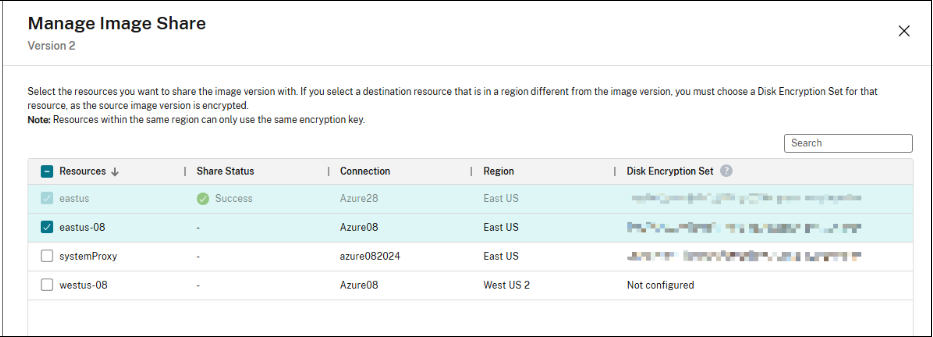
右键单击映像版本,然后选择 管理映像共享。将列出具有区域和磁盘加密集的资源。
-
选择要与映像版本共享的资源。创建映像版本的资源将禁用任何操作。如果未为资源配置 DES,请从下拉菜单中选择一个 DES。注意:同一区域内的资源必须使用相同的加密密钥。
-
点击 保存。
-
点击“资源”选项卡,以获取有关共享状态的更多详细信息。注意:
-
当映像版本共享状态正在进行时,删除映像版本或管理映像共享的选项将被禁用。
-
当资源成功共享后,DES 不可编辑。
-
使用 PowerShell 跨区域、订阅和租户共享加密映像
使用命令
Add-ProvImageVersionSpecHostingUnit 并添加参数 CustomProperties。在 CustomProperties 中,为目标资源配置 DES。共享准备好的加密映像时,每个资源都会从准备好的映像所属的订阅中选择其区域中的 DES。例如,
$CustomProperties = "<CustomProperties xmlns=`"http://schemas.citrix.com/2014/xd/machinecreation`" xmlns:xsi=`"http://www.w3.org/2001/XMLSchema-instance`">"
  "<Property xsi:type=`"StringProperty`" Name=`"DiskEncryptionSetId`" Value=`"/subscriptions/xxxxxx-7152-46c4-b061-xxxxxx70c/resourceGroups/resourcegroup1/providers/Microsoft.Compute/diskEncryptionSets/desid1`" />"+
  "</CustomProperties>"
 Add-ProvImageVersionSpecHostingUnit -ImageVersionSpecUid <Guid> -HostingUnitUid <Guid> -CustomProperties $CustomProperties
更多信息
-
映像管理