
Google Cloud環境への接続
接続とリソースの作成および管理では、接続を作成するウィザードについて説明します。以下の情報は、Google Cloud環境に固有の詳細を扱っています。
注:
Google Cloud環境への接続を作成する前に、まずGoogle Cloudアカウントをリソースの場所として設定を完了する必要があります。Google Cloud仮想化環境を参照してください。
接続の追加
Studioで、接続とリソースの作成および管理のガイダンスに従ってください。以下の説明では、ホスティング接続の設定について説明します。
-
Studioで、左ペインの**「ホスティング」**を選択します。
-
アクションバーで**「接続とリソースの追加」**を選択します。
-
**「接続」ページで、「新しい接続の作成」と「Citrix provisioning™ tools」を選択し、「次へ」**を選択します。
-
ゾーン名。ホストリソースを配置するゾーン(リソースの場所と同等)を選択します。ゾーンは、リソースの場所を作成し、そこにCloud Connectorを追加すると自動的に作成されます。詳細については、ゾーンを参照してください。
-
接続の種類。メニューから**「Google Cloud Platform」**を選択します。
-
サービスアカウントキー。Google認証情報ファイル(.json)に含まれるキーをインポートします。認証情報ファイルからキーを貼り付けるか、認証情報ファイルを参照することができます。キーを貼り付けるには:
-
認証情報ファイルを特定します
-
ファイルをメモ帳(または任意のテキストエディター)で開きます
-
内容をコピーします。
-
「接続」ページに戻り、「キーの追加」を選択し、コンテンツを貼り付けてから、「完了」を選択します。
-
-
サービスアカウントID。このフィールドには、サービスアカウントキーからの情報が自動的に入力されます。
-
接続名。接続の名前を入力します。
-
Citrix Cloud Connector を介してトラフィックをルーティングする。利用可能なCitrix Cloud Connector™を介してAPIリクエストをルーティングするには、このチェックボックスを選択します。Cloud Connectorに直接インターネットアクセスがない場合、「Citrix Cloud Connectorで構成されたプロキシを使用する」を選択して、Citrix Cloud Connectorを介してGCP接続が適切に機能するようにすることができます。また、追加のセキュリティ層として「Google Cloud Buildでプライベートプールを使用する」チェックボックスを選択することもできます。または、PowerShellを使用してこの機能を有効にすることもできます。詳細については、「GCP管理トラフィックのセキュアな環境を作成する」を参照してください。
注:このオプションは、展開環境にアクティブなCitrix Cloud™ Connectorがある場合にのみ利用できます。現在、この機能はConnector Appliancesではサポートされていません。-
仮想マシンの作成方法。仮想マシンを作成する方法を選択します。
-
-
「リージョン」ページで、メニューからプロジェクト名を選択し、使用するリソースを含むリージョンを選択してから、「次へ」を選択します。
-
「ネットワーク」ページで、リソースの名前を入力し、メニューから仮想ネットワークを選択し、サブセットを選択してから、「次へ」を選択します。リソース名は、リージョンとネットワークの組み合わせを識別するのに役立ちます。名前に「(Shared)」サフィックスが付いている仮想ネットワークは、共有VPCを表します。共有VPCのサブネットレベルのIAMロールを構成した場合、共有VPCの特定のサブネットのみがサブネットリストに表示されます。注:
-
リソース名には1~64文字を含めることができ、空白のみ、または文字
\ / ; : # . * ? = < > | [ ] { } " ' ( ) ' )を含めることはできません。
-
-
「概要」ページで情報を確認し、「完了」を選択して「接続とリソースの追加」ウィンドウを終了します。
接続とリソースを作成すると、作成した接続とリソースが一覧表示されます。接続を構成するには、接続を選択し、アクションバーで該当するオプションを選択します。
同様に、接続の下に作成されたリソースを削除、名前変更、またはテストできます。これを行うには、接続の下のリソースを選択し、アクションバーで該当するオプションを選択します。
GCP管理トラフィックのセキュアな環境を作成する
Google CloudプロジェクトへのプライベートGoogleアクセスのみを許可できます。この実装により、機密データを処理するためのセキュリティが強化されます。これを行うには:
-
VPCサービスコントロールを適用するVPCにCloud Connectorをインストールします。詳細については、VPC Service Controlsを参照してください。
-
Citrix Cloud展開の場合、
CustomPropertiesにProxyHypervisorTrafficThroughConnectorを追加します。プライベートワーカープールを使用している場合は、CustomPropertiesにUsePrivateWorkerPoolを追加します。プライベートワーカープールの詳細については、Private pools overviewを参照してください。
注:
現在、この機能はConnector Applianceではサポートされていません。
GCP管理トラフィックのセキュアな環境を作成するための要件
GCP管理トラフィックのセキュアな環境を作成するための要件は次のとおりです。
-
カスタムプロパティを更新する際は、ホスティング接続がメンテナンスモードであることを確認してください。
-
プライベートワーカープールを使用するには、次の変更が必要です。
-
Citrix Cloudサービスアカウントの場合、次のIAMロールを追加します。
-
Cloud Build サービスアカウント
-
Compute Instance 管理者
-
サービスアカウントユーザー
-
サービスアカウントトークン作成者
-
Cloud Build WorkerPool オーナー
-
-
ホスティング接続の作成に使用するのと同じプロジェクトにCitrix Cloudサービスアカウントを作成します。
-
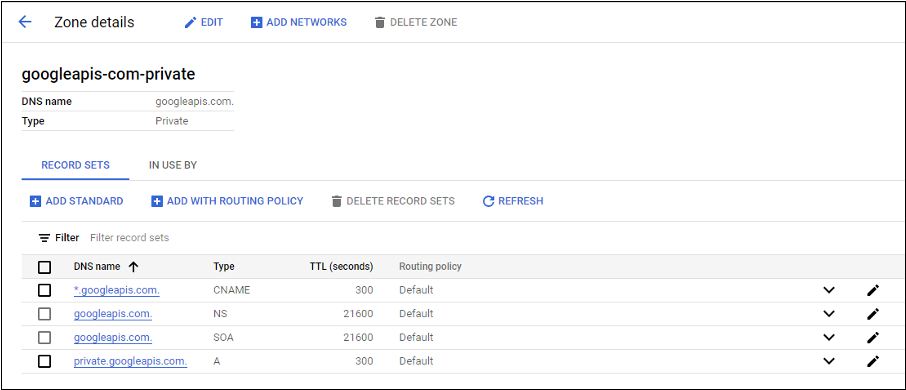
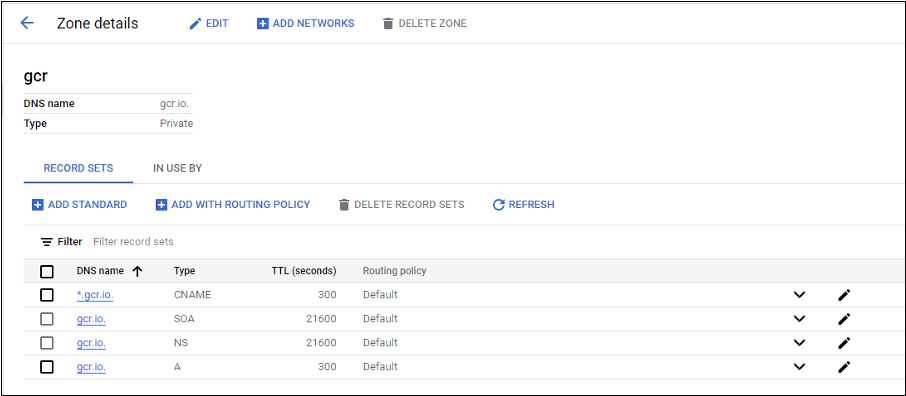
-
プライベートネットワークアドレス変換 (NAT) を設定するか、プライベートサービス接続を使用します。詳細については、「エンドポイントを介したGoogle APIへのアクセス」を参照してください。
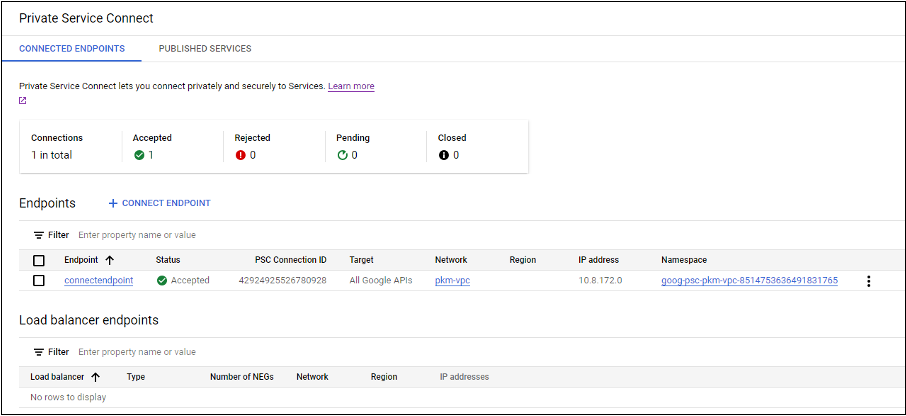
-
ピアリングされたVPCを使用している場合は、ピアリングされたVPCへのCloud DNSゾーンピアリングを作成します。詳細については、「ピアリングゾーンの作成」を参照してください。
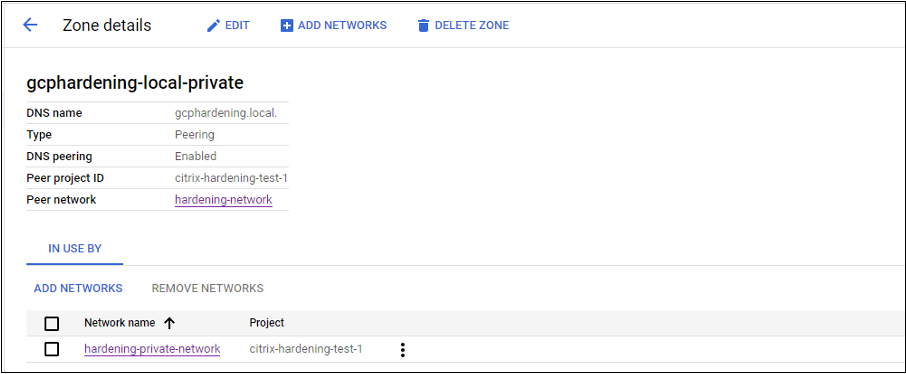
-
VPCサービスコントロールで、APIとVMがインターネットと通信できるようにエグレスルールを設定します。イングレスルールはオプションです。例:
Egress Rule 1
 From:
 Identities:ANY_IDENTITY
 To:
 Projects =
 All projects
 Service =
 Service name: All services
-
プロキシを有効にする
プロキシを有効にするには、ホスト接続でカスタムプロパティを次のように設定します。
-
Delivery ControllerホストからPowerShellウィンドウを開くか、Remote PowerShell SDKを使用します。Remote PowerShell SDKの詳細については、「SDKとAPI」を参照してください。
-
次のコマンドを実行します。
-
Add-PSSnapin citrix* -
cd XDHyp:\Connections\ -
dir
-
-
接続から
CustomPropertiesをメモ帳にコピーします。 -
プロパティ設定を次のように追加します。
-
クラウド展開(パブリックプールを使用)の場合:プロキシを有効にするには、プロパティ設定
<Property xsi:type="StringProperty" Name="ProxyHypervisorTrafficThroughConnector" Value="True"/>をCustomPropertiesに追加します。例:<CustomProperties xmlns:xsi="http://www.w3.org/2001/XMLSchema-instance" xmlns="http://schemas.citrix.com/2014/xd/machinecreation">
<Property xsi:type="StringProperty" Name="ProxyHypervisorTrafficThroughConnector" Value="True"/>
</CustomProperties>VPCサービス境界でCloud Buildサービスアカウントのイングレスルールを許可します。例:Ingress Rule 1
From:
Identities:
<ProjectID>@cloudbuild.gserviceaccount.com
Source > All sources allowed
To:
Projects =
All projects
Services =
Service name: All servicesVPCサービス境界の詳細については、「サービス境界の詳細と構成」を参照してください。 -
クラウド展開のプライベートワーカープールの場合、プロキシを有効にするには、プロパティ設定
<Property xsi:type="StringProperty" Name="ProxyHypervisorTrafficThroughConnector" Value="True"/>と<Property xsi:type="StringProperty" Name="UsePrivateWorkerPool" Value="True"/>をCustomPropertiesに追加します。例:<CustomProperties xmlns:xsi="http://www.w3.org/2001/XMLSchema-instance" xmlns="http://schemas.citrix.com/2014/xd/machinecreation">
<Property xsi:type="StringProperty" Name="ProxyHypervisorTrafficThroughConnector" Value="True"/>
<Property xsi:type="StringProperty" Name="UsePrivateWorkerPool" Value="True"/>
</CustomProperties>
-
-
PowerShellウィンドウで、変更されたカスタムプロパティに変数を割り当てます。例:
$customProperty = '<CustomProperties…</CustomProperties>'。 -
$gcpServiceAccount = "<ENTER YOUR SERVICE ACCOUNT EMAIL HERE>"を実行します。 -
$gcpPrivateKey = "<ENTER YOUR SERVICE ACCOUNT PRIVATE KEY HERE AFTER REMOVING ALL INSTANCES OF \n >"を実行します。 -
$securePassword = ConvertTo-SecureString $gcpPrivateKey -AsPlainText -Forceを実行します。 -
既存のホスト接続を更新するには、以下を実行します。
Set-Item -PassThru -Path @('XDHyp:\\Connections\\<ENTER YOUR CONNECTION NAME HERE>') -SecurePassword $securePassword -UserName $gcpServiceAccount -CustomProperties $customProperty
リダイレクトされたGCP APIトラフィックにCitrix Cloud Connectorでシステムプロキシを使用するオプション
すべての外部トラフィックを非透過型プロキシ経由でルーティングするには、カスタムプロパティ
UseSystemProxyForHypervisorTrafficOnConnectorsを使用してホスト接続を構成します。これにより、Citrix Cloud Connector上のGCP APIインターネットトラフィックがシステムプロキシ経由でリダイレクトされます。 プロキシを有効にするで概説されている手順と同じ手順を実行して、カスタムプロパティでホスト接続を構成します。ただし、プロキシを有効にするには、プロパティ設定<Property xsi:type="StringProperty" Name="UseSystemProxyForHypervisorTrafficOnConnectors" Value="True" />をCustomPropertiesに追加してください。
<Property xsi:type="StringProperty" Name="UseSystemProxyForHypervisorTrafficOnConnectors" Value="True" />
例:
<CustomProperties xmlns:xsi="http://www.w3.org/2001/XMLSchema-instance" xmlns="http://schemas.citrix.com/2014/xd/machinecreation">
  <Property xsi:type="StringProperty" Name="ProxyHypervisorTrafficThroughConnector" Value="True"/>
  <Property xsi:type="StringProperty" Name="UsePrivateWorkerPool" Value="True"/>
 <Property xsi:type="StringProperty" Name="UseSystemProxyForHypervisorTrafficOnConnectors" Value="True" />
 </CustomProperties>
注:
このプロパティを設定すると、Citrix Cloud Connector の
netsh winhttp 設定で構成されたプロキシが、クラウドサービスプロバイダーへのアウトバウンドトラフィックに使用されます。
CMEK のグローバルキーとリージョンキーを指定する
注:
GCP での CMEK のサポートは現在プレビュー中です。
GCP には、顧客管理の暗号化キー (CMEK) には次の2種類があります。
-
リージョン:同じリージョン内のリソースのみが使用できる暗号化キー。
-
グローバル:複数のリージョンのリソースが使用できる暗号化キー。
サービスアカウントがアクセスできるすべてのプロジェクトから、グローバルまたはリージョンの顧客管理暗号化キー (CMEK) を参照して使用できます。その後、そのキーを使用して CMEK 対応の MCS マシンカタログを作成し、
Set-ProvScheme コマンドを使用して既存の CMEK 対応 MCS マシンカタログを更新できます。PowerShell を使用して CMEK 対応カタログを作成する方法については、「カスタムプロパティを使用して CMEK でカタログを作成する」を参照してください。
この機能には、次の2つのサービスアカウントに対する追加の権限が必要です。
-
ホスティング接続が作成される現在のプロジェクトのサービスアカウント。
-
現在のプロジェクトの Compute Engine Service Agent (メールアドレス:
service-PROJECT_NUMBER@compute-system.iam.gserviceaccount.com)。詳細については、「Compute Engine Service Agent」を参照してください。
サービスアカウントでは、使用したい暗号キーがあるプロジェクト (共有プロジェクトなど) で、次の役割を割り当てる必要があります。
-
Cloud KMS 閲覧者
-
Cloud KMS 暗号鍵 暗号化担当者/復号化担当者
役割を割り当てない場合は、以下の権限があることを確認してください。
-
resourcemanager.projects.get
-
cloudkms.keyRings.list
-
cloudkms.keyRings.get
-
cloudkms.cryptoKeys.get
-
cloudkms.cryptoKeys.list
-
cloudkms.cryptoKeyVersions.useToDecrypt
-
cloudkms.cryptoKeyVersions.useToEncrypt
暗号化キーを一覧表示する
PowerShellコマンドを使用して、同じプロジェクト内およびアクセス可能な他のすべてのプロジェクト内のグローバルおよびリージョンの暗号化キーを一覧表示できます。これを行うには、:
-
Delivery Controller™ホストまたはリモートPowerShellからPowerShellウィンドウを開きます。
-
コマンド
asnp citrix*を実行して、Citrix固有のPowerShellモジュールをロードします。 -
次のコマンドを実行して、暗号化キーを一覧表示します。例:
-
encryptionKeysフォルダーの内容を一覧表示するには:Get-ChildItem XDHyp:\HostingUnits\my-hostingunit\encryptionKeys.folder -
同じプロジェクト内でグローバル暗号化キーを取得するには:
Get-Item XDHyp:\HostingUnits\my-hostingunit\encryptionKeys.folder\myglobalkeyring.globalkeyring\myglobalkey.cryptokey -
同じプロジェクト内でリージョン暗号化キーを取得するには:
Get-Item XDHyp:\HostingUnits\my-hostingunit\encryptionKeys.folder\regional-ring.keyring\shared-key.cryptokey -
アクセス可能な別のプロジェクト(例:myanotherproject)からグローバル暗号化キーを取得するには:
Get-Item XDHyp:\HostingUnits\my-hostingunit\encryptionKeys.folder\myanotherproject.project\shared-global-ring.globalkeyring\shared-key.cryptokey -
アクセス可能な別のプロジェクト(例:myanotherproject)からリージョン暗号化キーを取得するには:
Get-Item XDHyp:\HostingUnits\my-hostingunit\encryptionKeys.folder\myanotherproject .project.project\shared-uscentral.keyring\shared-uscentral-key.cryptokey
-
注:
-
グローバルキーリングのキーリングインベントリアイテムの拡張子は
.globalkeyringです。 -
グローバルキーリングのIDには、
globalという単語が含まれています。
必要なGCP権限
このセクションには、GCP権限の完全なリストが含まれています。機能が正しく動作するように、このセクションに記載されている権限の完全なセットを使用してください。
注:
GCPは、Cloud Build Servicesのデフォルトの動作とサービスアカウントの使用に関して、April 29, 2024以降に変更を導入します。詳細については、Cloud Build Service Account Changeを参照してください。April 29, 2024より前にCloud Build APIが有効になっている既存のGoogleプロジェクトは、この変更の影響を受けません。ただし、April 29以降も既存のCloud Build Serviceの動作を維持したい場合は、APIを有効にする前に、制約の適用を無効にする組織ポリシーを作成または適用できます。新しい組織ポリシーを設定した場合、このセクションの既存の権限と、Cloud Build Service Account Change前とマークされている項目を引き続き使用できます。そうでない場合は、既存の権限と、Cloud Build Service Account Change後とマークされている項目に従ってください。
ホスト接続の作成
-
プロビジョニングプロジェクトのCitrix Cloudサービスアカウントに必要な最小限の権限:
compute.instanceTemplates.list
 compute.instances.list
 compute.networks.list
 compute.projects.get
 compute.regions.list
 compute.subnetworks.list
 compute.zones.list
resourcemanager.projects.get次のGoogle定義ロールには、上記にリストされている権限があります。-
Compute 管理者
-
クラウド データストア ユーザー
-
-
共有 VPC プロジェクト内の Citrix Cloud サービスアカウントの共有 VPC に必要な追加の権限:
compute.networks.list
 compute.subnetworks.list
 resourcemanager.projects.get
次の Google 定義ロールには、上記にリストされている権限があります:-
コンピュート ネットワーク ユーザー
-
-
サービスアカウントでは、使用する暗号鍵があるプロジェクト (共有プロジェクトなど) に次のロールを割り当てる必要があります:
-
Cloud KMS 閲覧者
-
Cloud KMS クリプトキー 暗号化/復号化担当者
ロールを割り当てない場合は、次の権限があることを確認してください:-
resourcemanager.projects.get
-
cloudkms.keyRings.list
-
cloudkms.keyRings.get
-
cloudkms.cryptoKeys.get
-
cloudkms.cryptoKeys.list
-
cloudkms.cryptoKeyVersions.useToDecrypt
-
cloudkms.cryptoKeyVersions.useToEncrypt
-
仮想マシンの電源管理
電源管理のみのカタログの場合に、プロビジョニングプロジェクト内のCitrix Cloudサービスアカウントに必要な最小限の権限:
compute.instanceTemplates.list
 compute.instances.list
 compute.instances.get
 compute.instances.reset
 compute.instances.resume
 compute.instances.start
 compute.instances.stop
 compute.instances.suspend
 compute.networks.list
 compute.projects.get
 compute.regions.list
 compute.subnetworks.list
 compute.zones.list
 resourcemanager.projects.get
 compute.zoneOperations.get
次のGoogle定義のロールは、上記の権限を持っています:
-
Compute管理者
-
クラウド データストア ユーザー
仮想マシンの作成、更新、または削除
-
プロビジョニングプロジェクト内のCitrix Cloudサービスアカウントに必要な最小限の権限:
cloudbuild.builds.create
 cloudbuild.builds.get
 cloudbuild.builds.list
 compute.acceleratorTypes.list
 compute.diskTypes.get
 compute.diskTypes.list
 compute.disks.create
 compute.disks.createSnapshot
 compute.disks.delete
 compute.disks.get
 compute.disks.list
 compute.disks.setLabels
 compute.disks.use
 compute.disks.useReadOnly
 compute.firewalls.create
 compute.firewalls.delete
 compute.firewalls.list
 compute.globalOperations.get
 compute.images.create
 compute.images.delete
 compute.images.get
 compute.images.list
 compute.images.setLabels
 compute.images.useReadOnly
 compute.instanceTemplates.create
 compute.instanceTemplates.delete
 compute.instanceTemplates.get
 compute.instanceTemplates.list
 compute.instanceTemplates.useReadOnly
 compute.instances.attachDisk
 compute.instances.create
 compute.instances.delete
 compute.instances.detachDisk
 compute.instances.get
 compute.instances.getSerialPortOutput
 compute.instances.list
 compute.instances.reset
 compute.instances.resume
 compute.instances.setDeletionProtection
 compute.instances.setLabels
 compute.instances.setMetadata
 compute.instances.setServiceAccount
 compute.instances.setTags
 compute.instances.start
 compute.instances.stop
 compute.instances.suspend
 compute.machineTypes.get
 compute.machineTypes.list
 compute.networks.list
 compute.networks.updatePolicy
 compute.nodeGroups.list
 compute.nodeTemplates.get
 compute.projects.get
 compute.regions.list
 compute.snapshots.create
 compute.snapshots.delete
 compute.snapshots.list
 compute.snapshots.get
 compute.snapshots.setLabels
 compute.snapshots.useReadOnly
 compute.subnetworks.get
 compute.subnetworks.list
 compute.subnetworks.use
 compute.zoneOperations.get
 compute.zoneOperations.list
 compute.zones.get
 compute.zones.list
 iam.serviceAccounts.actAs
 resourcemanager.projects.get
 storage.buckets.create
 storage.buckets.delete
 storage.buckets.get
 storage.buckets.list
 storage.buckets.update
 storage.objects.create
 storage.objects.delete
 storage.objects.get
 storage.objects.list
 compute.networks.get
 compute.resourcePolicies.use
次のGoogle定義のロールは、上記の権限を持っています:-
Compute管理者
-
Storage管理者
-
Cloud Build編集者
-
サービスアカウントユーザー
-
クラウド データストア ユーザー
-
-
共有VPCプロジェクトのVPCとサブネットワークを使用してホスティングユニットを作成するために、共有VPCプロジェクト内のCitrix Cloudサービスアカウントの共有VPCに追加で必要な権限:
compute.firewalls.list
 compute.networks.list
 compute.projects.get
 compute.regions.list
 compute.subnetworks.get
 compute.subnetworks.list
 compute.subnetworks.use
 compute.zones.list
resourcemanager.projects.get次のGoogle定義のロールは、上記の権限を持っています:-
コンピュートネットワークユーザー
-
クラウド データストア ユーザー
MCSに準備指示ディスクをダウンロードする際に必要な最小限の権限:-
(Cloud Build サービスアカウント変更前): これらの権限をプロビジョニングプロジェクトのCloud Build サービスアカウントに割り当てます。
-
(Cloud Build サービスアカウント変更後): これらの権限をプロビジョニングプロジェクトのCloud Compute サービスアカウントに割り当てます。
compute.disks.create
 compute.disks.delete
 compute.disks.get
 compute.disks.list
 compute.disks.setLabels
 compute.disks.use
 compute.disks.useReadOnly
 compute.images.get
 compute.images.list
 compute.images.useReadOnly
 compute.instances.create
 compute.instances.delete
 compute.instances.get
 compute.instances.getSerialPortOutput
 compute.instances.list
 compute.instances.setLabels
 compute.instances.setMetadata
 compute.instances.setServiceAccount
 compute.machineTypes.list
 compute.networks.get
 compute.networks.list
 compute.projects.get
 compute.subnetworks.list
 compute.subnetworks.use
 compute.subnetworks.useExternalIp
 compute.zoneOperations.get
 compute.zones.list
 iam.serviceAccounts.actAs
 logging.logEntries.create
 pubsub.topics.publish
 resourcemanager.projects.get
 source.repos.get
 source.repos.list
 storage.buckets.create
 storage.buckets.get
 storage.buckets.list
 storage.objects.create
 storage.objects.delete
 storage.objects.get
storage.objects.list以下のGoogle定義ロールには、上記にリストされている権限があります:-
Cloud Build サービスアカウント (Cloud Build サービスアカウント変更後はCloud Compute サービスアカウント)
-
コンピュートインスタンス管理者
-
サービスアカウントユーザー
-
-
MCSに準備指示ディスクをダウンロードする際に、Google Cloud BuildサービスによってプロビジョニングプロジェクトのCloud Compute サービスアカウントに必要とされる最小限の権限:
resourcemanager.projects.get
 storage.objects.create
 storage.objects.get
storage.objects.list以下のGoogle定義ロールには、上記にリストされている権限があります:-
コンピュートネットワークユーザー
-
ストレージアカウントユーザー
-
クラウド データストア ユーザー
MCSに準備指示ディスクをダウンロードする際に、共有VPCに必要とされる追加の権限:-
(Cloud Buildサービスアカウント変更前): プロビジョニングプロジェクトのCloud Buildサービスアカウントにこれらの権限を割り当てます。
-
(Cloud Buildサービスアカウント変更後): プロビジョニングプロジェクトのCloud Computeサービスアカウントにこれらの権限を割り当てます。
compute.firewalls.list
 compute.networks.list
 compute.subnetworks.list
 compute.subnetworks.use
resourcemanager.projects.get以下のGoogle定義ロールには、上記にリストされている権限があります:-
コンピュートネットワークユーザー
-
ストレージアカウントユーザー
-
クラウド データストア ユーザー
-
-
プロビジョニングプロジェクトのCitrix CloudサービスアカウントのCloud Key Management Service (KMS) に必要な追加権限:
cloudkms.cryptoKeys.get
 cloudkms.cryptoKeys.list
 cloudkms.keyRings.get
cloudkms.keyRings.list以下のGoogle定義ロールには、上記にリストされている権限があります:-
Compute KMS 閲覧者
-
一般的な権限
以下は、MCSでサポートされているすべての機能について、プロビジョニングプロジェクトのCitrix Cloudサービスアカウントの権限です。これらの権限は、今後最高の互換性を提供します:
resourcemanager.projects.get
 cloudbuild.builds.create
 cloudbuild.builds.get
 cloudbuild.builds.list
 compute.acceleratorTypes.list
 compute.diskTypes.get
 compute.diskTypes.list
 compute.disks.create
 compute.disks.createSnapshot
 compute.disks.delete
 compute.disks.get
 compute.disks.setLabels
 compute.disks.use
 compute.disks.useReadOnly
 compute.firewalls.create
 compute.firewalls.delete
 compute.firewalls.list
 compute.globalOperations.get
 compute.images.create
 compute.images.delete
 compute.images.get
 compute.images.list
 compute.images.setLabels
 compute.images.useReadOnly
 compute.instanceTemplates.create
 compute.instanceTemplates.delete
 compute.instanceTemplates.get
 compute.instanceTemplates.list
 compute.instanceTemplates.useReadOnly
 compute.instances.attachDisk
 compute.instances.create
 compute.instances.delete
 compute.instances.detachDisk
 compute.instances.get
 compute.instances.getSerialPortOutput
 compute.instances.list
 compute.instances.reset
 compute.instances.resume
 compute.instances.setDeletionProtection
 compute.instances.setLabels
 compute.instances.setMetadata
 compute.instances.setTags
 compute.instances.start
 compute.instances.stop
 compute.instances.suspend
 compute.instances.update
 compute.instances.updateAccessConfig
 compute.instances.updateDisplayDevice
 compute.instances.updateSecurity
 compute.instances.updateShieldedInstanceConfig
 compute.instances.updateShieldedVmConfig
 compute.machineTypes.get
 compute.machineTypes.list
 compute.networks.list
 compute.networks.updatePolicy
 compute.nodeGroups.list
 compute.nodeTemplates.get
 compute.projects.get
 compute.regions.list
 compute.snapshots.create
 compute.snapshots.delete
 compute.snapshots.list
 compute.snapshots.get
 compute.snapshots.setLabels
 compute.snapshots.useReadOnly
 compute.subnetworks.get
 compute.subnetworks.list
 compute.subnetworks.use
 compute.subnetworks.useExternalIp
 compute.zoneOperations.get
 compute.zoneOperations.list
 compute.zones.get
 compute.zones.list
 resourcemanager.projects.get
 storage.buckets.create
 storage.buckets.delete
 storage.buckets.get
 storage.buckets.list
 storage.buckets.update
 storage.objects.create
 storage.objects.delete
 storage.objects.get
 storage.objects.list
 cloudkms.cryptoKeys.get
 cloudkms.cryptoKeys.list
 cloudkms.keyRings.get
 cloudkms.keyRings.list
 compute.disks.list
 compute.instances.setServiceAccount
 compute.networks.get
 compute.networks.use
 compute.networks.useExternalIp
 iam.serviceAccounts.actAs
 compute.resourcePolicies.use
 cloudkms.cryptoKeyVersions.useToDecrypt
 cloudkms.cryptoKeyVersions.useToEncrypt
次のステップ
-
初期展開プロセス中の場合は、マシンカタログの作成を参照してください。
-
Google Cloud Platform (GCP) 固有の情報については、Google Cloud Platformカタログの作成を参照してください。
詳細情報
-
接続とリソースの作成および管理(/ja-jp/citrix-daas/install-configure/connections.html)
-
Google Cloud仮想化環境(/ja-jp/citrix-daas/install-configure/resource-location/google.html)。